We remain fully operational. Our teams are working around the clock to ensure your deliveries continue safely.
قم بتنزيل التطبيق


معلومات عنا
حقوق الطبع والنشر © 2024 Desertcart Holdings Limited
قم بتنزيل التطبيق


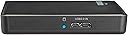

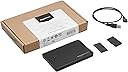
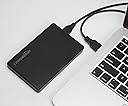
Buy anything from 5,000+ international stores. One checkout price. No surprise fees. Join 2M+ shoppers on Desertcart.
Desertcart purchases this item on your behalf and handles shipping, customs, and support to KUWAIT.
💼 Elevate your data game—secure, speedy, and sleek storage solutions for the modern pro.
The Amazon Basics 3.5-inch SATA Hard Drive Enclosure 5-Pack offers versatile, high-speed external storage with USB 3.0 support up to 5 Gbps. Designed for easy, tool-free installation and powered by a reliable 12V/2A external adapter, it ensures stable operation for most 3.5-inch SATA HDDs. Compatible with major operating systems, it’s an ideal solution for professionals seeking efficient data backup, reuse of old drives, or expanded storage with minimal setup.


| ASIN | B07TM6JW3Y |
| Best Sellers Rank | #15,532 in Our Brands ( See Top 100 in Our Brands ) |
| Brand | Amazon Basics |
| Color | Black |
| Compatible Devices | Laptop |
| Connectivity Technology | USB |
| Customer Reviews | 4.4 out of 5 stars 5,539 Reviews |
| Data Transfer Rate | 5 Gigabytes Per Second |
| Hard Disk Form Factor | 3.5 Inches |
| Hardware Interface | USB 3.0 |
| Hardware Platform | Windows |
| Item Weight | 1.03 Pounds |
| Manufacturer | Amazon Basics |
| Mfr Part Number | HZZ39001V1SZPR01 |
| Model Number | HZZ39001V1SZPR01 |
| Supported Devices Quantity | 1 |
| UPC | 840095803779 |
| Unit Count | 5.0 Count |
S**M
simple, well made, great value
I purchased the five pack of 3.5" enclosures. I replaced my internal drives with SSDs recently, so it's great to be able reuse my old drives as backups, etc. If/when the five pack is on sale for less than $50, it's an insane value. For a higher price of ~$60 or so, they'd still be great enclosures and good for the price, but I might not go hog wild and buy the five pack unless I really really needed all five. The external power supply is a great feature because USB often doesn't have enough power to safely and consistently run older 3.5" drives. The power supply outputs 12 Volts (12V), 2 Amps (2A). I would never recommend buying an enclosure that supplies anything less than a 2 Amps unless you are certain, based on drive specification, that you can use less amps. The enclosure plastic is high grade, not brittle feeling, and the parts all slide and snap together well. Not a single bit of plastic warping or extra bits of plastic from bad molds, etc. The parts do not feel cheaply made at all. My hard drives slid and snapped into place without any fuss or risk of snapping connections, etc. Two bits of foam with sticky tape can be used to help cushion the drive within the enclosure. This is probably important because there is a tiny bit of wiggle room. With the foam, the drive does not slide around in the enclosure at all. There is no fan in the enclosure, so the drive might get a bit hot. The power cable is nice and long, which can't be said for a lot of other external drives and enclosures. There is a power switch on the enclosure which allows you to choose when it's on and off as opposed to having to plug/unplug it. When I first unpacked the enclosures, I freaked out for a moment because I thought a piece to the power adapter was missing, but upon closure inspection, it was all present (so check the packaging closely). The power adapter comes in two parts, presumably so that these enclosures can be sold in different parts of the world with different adapter leads for different outlets. Windows 10 should recognize it very readily as an "AmazonBasics Enclosure", and it operates like any other removable drive I've used. When I purchased my five pack, I noticed the product images between the 2.5" and 3.5" five packs were swapped. I reported this to Amazon, so it might be fixed by the time you read this. If you purchase a five pack, go by the product description, not by the images. The images attached to my review are for the 3.5" enclosure with external power supply and correspond to what you should hopefully receive if you choose the five pack of 3.5" enclosures by name and product description.
J**N
Best way to salvage an old desktop
Old Desktops had small, (compared to today's standard 1TB) bulky 3.5" HDD’s that ran on slow SATA I, II, or worse connections. While plugged into their housing, their transfer speed was acceptable, but getting data outside the housing required working through the old computer, usually through a USB 2.0 port or an Ethernet set up. Moving multiple hundreds of GB's in this manner take hours to days, and usually fails. This device saves that time. Not only because it’s transfer speed likely matches or outpaces older HDD’s, because why bother transferring it at that point? The speed is sufficient to stream HD video directly from the drive without moving it to you newer device, and it’s already organized the same way you had it on the old one. For the price of this device you don’t have to wait for the transfer at all, thanks to the speed, it allows you to use it indefinitely as an external HDD without the old drawbacks of data rate. Pro: -Relatively cheap. -Included spacers for cushioning/ accounting for manufacture variations - USB 3.0 Speed matches or exceeds older drives, and would be acceptable on any newer mass storage device short of a network server. - A usable amount of chord to place this permanently if wanted, but no excessive that makes it a pain to move. -The power button! It’s nice to be able to plug this into a network USB port and use it as an actual network drive, but turn it off without need to unplug it. Safe way to disconnect from it. Cons: -Cheaper than desired plastic. The thickness is fine, but the finish is meh. Mat finish without texture wins over textured any day. Hides scratches, too. This doesn't setract from value, but does aethieetically make this look and feel cheap. Personal Gripes: None really. Work very well and I saved my first ever desktop, a 2005 Dell XPS 400, with much more ease. As I was cleaning, the drive out I realized… I didn’t need to. Just keep it. Done.
S**Y
Best used as an open caddy-performance hardrives get warm in here
Its performs flawlessly. you turn it on it mounts in Windows 10 and dismounts with a touch of the power switch. There is an integrated brush metal surface and some foam inserts. The cover is frustrating until you learn to grasp it at the very end and gently tug. Off it comes. With repeated cycles it comes off easier over time of use. Still sturdy. Test: 2TB Seagate FireCuda (New SSHD Gaming and then there was...), 2TB WD Black Edition and Red Edition hard drives 2/4TB units 7 years or so old and still rocking. Some Kingston and Samsung SSD's TASK: Sector by sector security wiping duration for each, 6-10 hours per 2TB (HD) 100 percent load activity average., the SSD's not so much, in fact a way shorter time span. Note to self: retire all hard drive and replace with high density SSD storage...done. SSD'S no thermal issues. The hard drives: Thermal issues but not waffle griddle hot. Conclusion: pull the cover off and place a fan on the assembly. No test subjects were permanently harmed during the evaluation. Great buy.
B**B
About as Plug-and-Play Easy as it Gets
Solid, well-designed quality product. I'm running Windows 7 Pro 64-bit -- on all of my seven computers in the house -- and this is about as plug-and-play easy as it gets. Literally: (1) open plastic enclosure (2) insert 3.5" hard drive (3) slide cover back on (4) plug the AC power adapter into the enclosure (5) connect the USB cable from the enclosure to your computer (6) press the power button on the enclosure to "on" (i.e. "on" is when the button is depressed; "off" is when the button sticks out a little bit). When you're connected to a computer that is on, and the hard drive enclosure power is on, the blue LED light will light up after a few seconds. Windows 7 will automatically find and install the necessary drivers for both the enclosure, and the drive (we're talking maybe 10-20 seconds here). Probably best to be connected to the Internet, just in case Windows needs to find a driver. (If you're using WinDoze 10, I will say a prayer for you -- but the enclosure works for all versions of Windows, from XP to Windows 10). If you are simply moving an existing hard drive -- one that is already in use and has information on it -- to the hard drive enclosure, that's it. You're done. NOW LISTEN CAREFULLY! If you are using a NEW hard drive, you still need to initialize the drive in order for your computer (i.e. Windows) to recognize and use the NEW drive. This applies to whenever a NEW drive is connected to a computer, and has nothing to do with the enclosure! SO, I don't want to read any "the enclosure sucked, the drive was defective, etc." comments due to you not initializing your NEW hard drive. Capisce? Also remember, USB connected hard drives are NOT intended for booting your Windows computer from (if it would even let you try). So, do not install, or attempt to install, your OS onto a drive in an external USB enclosure! I bought six of these, and have already put three into service -- flawlessly. Primarily, I needed an inexpensive way to remove full-to-the-max hard drives from my computers, and still be able to access them when needed. This enclosure does this perfectly! Plus the extra bonus of now being able to connect the drives archived in the external enclosure, via USB, to any other USB equipped computer. A word about Windows XP... Windows XP will only recognize hard drives up to 2 TB in size. If you try using a hard drive larger than 2 TB with Windows XP, it won't be able to see the entire drive. The work-a-round with XP, with drives larger than 2 TB, is to partition the hard drive into multiple volumes of 2 TB or less. DO NOT try to partition a hard drive that already has files on it! You will most likely lose data, and be very, very sorry. As a rule, partitioning a hard drive is something you do with a NEW drive -- and you know why you're doing it! If you don't know why you want or need to partition a hard drive into multiple volumes, then DON'T do it. For most people, you want to create what Windows refers to as a "Simple Volume" (i.e. the entire hard drive is one single volume), when you initialize and format a NEW hard drive. When you initialize and format a NEW hard drive, you will be asked to choose between MBT (Master Boot Record) or GPT (Globally Unique Identifier Partition Table) when you setup the drive. Basically, if your hard drive is 2 TB or less, you should choose MBT. If your hard drive is larger than 2 TB, you should choose GPT. I have been using 1 TB, 2 TB and 4 TB hard drives in this enclosure effortlessly and with no issues whatsoever. Personally, I wouldn't put drives larger than 4 TB in an external, sealed enclosure of this type (i.e. potential heat issues on thicker multiple-platter drives), although larger drives should still work. FWIW, I have even been using one of my enclosures as a means to format new hard drives before installing them into computers. This way, I have my new drive ready-to-go before I remove an existing drive from a computer, and just pop it in to replace the drive I'm removing. Then, the drive I just removed gets transferred to one of these great hard drive enclosures and, just like that, I have an instant archive :) FYI, I'm using these enclosures as a way to archive 4 TB hard drives that I have filled full-to-the-max, so that I can fill-up even more hard drives. I'm working with a lot of video files, and this allows me to easily access files on drives that I have archived to the external enclosure. Finally, heat is just not an issue with this enclosure. My 4 TB Western Digital 5400-RPM drives idle at about 85 degrees Fahrenheit (7200-RPM drives might run a bit warmer) in this enclosure. Even when I perform a complete format, lasting 10-12 hours, the drives never go higher than 100 degrees Fahrenheit -- which is well within the safe temperature zone for hard drives. TIP: If you're using this enclosure for archiving hard drives (e.g. you don't need to access the drive all the time), then just leave it off. You don't have to leave hard drives running unless you're going to be accessing them. And, a drive that's not running generates no heat at all :) Great product at an affordable price.
S**E
Amazon Basics SATA HDD Enclosure with WD Gold Drive
Hardware: (1) This Amazon Basics 3.5-inches SATA HDD Hard Drive Enclosure hosting a WD Gold 4TB drive. (2) All connected by USB 3.0 to a four-year-old Asus H170 Pro motherboard with several internal SATA disks and one Adata SSD connected as PCIe (drive C). There is also a Kootion 6-port USB 3.0 hub between the computer and the new enclosure. The WD gold drive is rated at a maximum sustained data rate of 255 MB/s, or about 2 Gb/s, the USB 3 bus at 5 Gb/s, and the SATA bus at 6 Gb/s. Hence the disk drive itself should be the limiting factor. Results: Files move from this drive to the Adata SSD at about 235 MB/s, or almost 1.9 Gb/s. Direction of data flow doesn't matter much - in either direction a 42 GB file is transferred in less than 3 minutes. That's several times faster than any of my internal hard drives. I wish they were all as fast. There is a brief initial surge of data, as the cache is filled, and then the remainder of the transfer occurs at very nearly the drive's maximum sustained rate. This is an inexpensive way to add a LOT of high-quality, removable disk storage to any computer with a USB 3 port. Other disk drives will work too, but for the same capacity the price difference is worth only a few cups of coffee, and hopefully you get what you pay for in speed and reliability. 2020 Nov 9, two months later: It's still running just fine. In contrast with comments by others, the drive does not make any noise in this Amazon Basics Enclosure. Quiet and fast. Even though it's connected by USB 3 instead of SATA, it's by far the fastest of my 8 drives except for Drive C, the PCIe SSD.
W**.
Worked well under rough conditions
I purchased this drive enclosure on May 4, 2018. I put in a Toshiba 500GB drive and have used this as a backup to my backup for data. This enclosure had been dropped many times and has never failed until today, which is May 24, 2020., a bit over two years. If I had kept this drive enclosure safer then I have no doubt I would have gotten many more years of use out of it. How do I know the enclosure failed? It stopped reading the enclosed drive when plugged in, aka nothing happens. I took out the drive and ran thorough drive diagnostics and the drive is in good shape (Another testament to how the enclosure protected it). I switched out the cord and installed another working drive and the enclosure in dead. I may spend more time trying to fix the problem but for under $15 I never expected it to last this long and it would probably be more economical to just grab another one. I would highly recommend this enclosure to anyone looking for a cheap and reliable way to create external USB storage.
J**G
It works well
Well, the enclosure is plug and play, and it works. Haven't had any issues with it. The only thing I didn't realize is, is that it wasn't compatible with SSDs, so when I tried to use one it didn't work, but that's my fault for not reading all the way and isn't a huge drawback for me. Drives are easy to install and remove from the enclosure. The top is easy to remove and replace. I would have liked the activity light to be on top of the enclosure, but not a big deal. There are some foam pieces included to reduce vibration. Air flow is zero if the case is closed, but can be left open if you are not worried about any kind of interference with the drive. So if you are gonna leave the drive on for extended periods of time, I would recommend letting it breathe some and taking the top of the enclosure off here and there. But, this is definitely a good buy and would recommend it for external storage. Oh, and I use it primarily for my XB1 external storage, so it does work for those that are wondering.
S**E
Cheap Enclosure, Maybe too Cheap!
I bought this unit because it was the least expensive, and my old external hard drive croaked. I used my old one for Wii U games and I already have a Sabrent USB 3.0 to SATA External Hard Drive Enclosure (which I highly recommend), so I took apart my old external and found that the drive was fine, but rather the USB controller died. So I figured I would try this Amazon Basics enclosure this time around, it was a few dollars cheaper. First and foremost, it did not work with the Wii U at all. The unit has an LED that turns on when connected to the system and blinks for access. This is NOT a power LED, as it only turns on when whatever it is plugged into recognizes it (for example, my home computer). It work fine on my PC, but if I left it idle, the LED would turn off and it seemed to go to sleep. This meant it would need to wake up to work again on my PC which made it seem rather slow. The Wii U would have the LED eventually come on after power up, but then it would turn off. This is the only USB storage device I have ever used that will not recognize with the Wii U. On top of my technical issue, the casing of the enclosure is very thin and does not lock in place very well. The cords are extremely short, which may or may not be inconvenient to you. On Windows, it was easy to use, but noticeably slower than my Sabrent USB 3.0 to SATA External Hard Drive Enclosure. If you absolutely can't afford a few more dollars, this will work in a pinch for basic needs, like accessing a hard drive of a dead machine. But if you can afford a few more dollars, I recommend the Sabrent USB 3.0 to SATA External Hard Drive instead. It works with game systems too, like the PS4, PS3, Wii U and XBOX One.
ترست بايلوت
منذ شهر
منذ شهر