We remain fully operational. Our teams are working around the clock to ensure your deliveries continue safely.

قم بتنزيل التطبيق


معلومات عنا
حقوق الطبع والنشر © 2024 Desertcart Holdings Limited
قم بتنزيل التطبيق
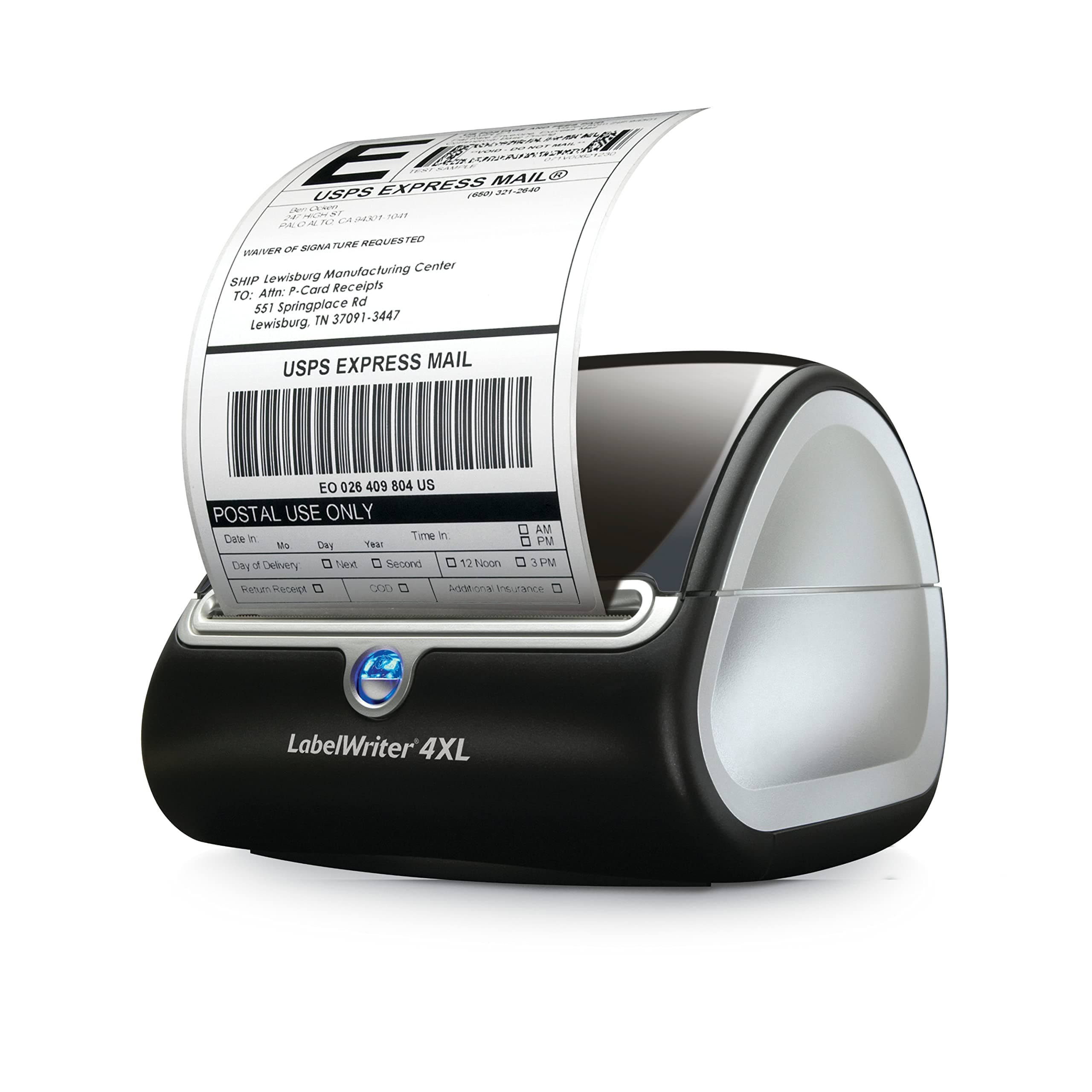




🚀 Ship smarter, faster, and bigger with DYMO 4XL!
The DYMO LabelWriter 4XL is a compact, high-speed thermal label printer designed for professional eCommerce sellers and warehouse operations. It prints large 4" x 6" shipping labels compatible with USPS, FedEx, UPS, and integrates seamlessly with popular online selling platforms. With 300 dpi resolution and direct thermal printing, it delivers crisp, ink-free labels quickly and cost-effectively, supported by free DYMO Connect software for easy customization and inventory management.


| ASIN | B002M1LGJ4 |
| Additional Printer Functions | Print Only |
| B&W Pages per Minute | 10 ppm |
| Brand | DYMO |
| Built-In Media | Labels |
| Color | Black/Gray |
| Color Depth | 1 bpp |
| Compatible Devices | Laptops, PC |
| Control Method | App |
| Customer Reviews | 4.4 4.4 out of 5 stars (8,300) |
| Dual-sided printing | No |
| Duplex | simplex |
| Global Trade Identification Number | 00041540012412, 00071701057068 |
| Hardware Interface | USB 2.0 |
| Initial Page Print Time | 10-20 seconds |
| Ink Color | Black |
| Item Dimensions D x W x H | 17.8D x 14W x 18.7H centimeters |
| Item Type Name | Sanford Brands - 1755120, LabelWriter 4XL |
| Item Weight | 2.31 Kilograms |
| Manufacturer | Sanford |
| Maximum Copies Per Run | Ilimitado |
| Maximum Copy Resolution Black and White | 300 x 300 dpi |
| Maximum Copy Speed Black and White | 10 ppm |
| Maximum Media Size | 4 x 6 inches |
| Maximum Print Resolution Black and White | 300 dpi |
| Maximum Sheet Capacity | 100 |
| Maximum print Resolution Color | 300 x 300 DPI |
| Model Name | 4XL Machine |
| Model Number | 1755120 |
| Model Series | LabelWriter |
| Number of Drivers | 1 |
| Other Special Features of the Product | Email Print |
| Output sheet capacity | 100 |
| Paper Size | 10.2 centimeters |
| Print media | Labels |
| Printer Connectivity Type | USB |
| Printer Output Type | Monochrome |
| Printer Type | Thermal |
| Processor Count | 1 |
| Resolution | 300 x 300 |
| Scanner Type | Bar Code, Photo, Receipt |
| Series Number | 1755120 |
| Specific Uses For Product | office organization, inventory management, shipping labeling, asset tracking |
| Total USB 2.0 Ports | 1 |
| Total Usb Ports | 1 |
| UPC | 041540012412 071701057068 |
| Unit Count | 1 Count |
| Warranty Type | software_warranty |
A**R
Great price, great product. Good delivery
S**I
Funciona bn y rapido, no había tenido otra con que compararla, pero funciona muy bien. Impresion clara y muy rápida.
M**Y
Have had this for a few months now and it works great, I am happy I purchased this one instead of one of the smaller / less expensive ones. Being able to print my own shipping labels is great, I can also print other items such as packing slips. This is nice and small and doesn't take up a lot of space like other printers may need. Another great thing about thermal printers is you don't need to buy ink! Once you purchase it, you only worry about the paper. I personally use it to sell items on amazon and I am able to print out everything I need.
S**T
I sell a lot of items on Ebay and I recently purchased this printer for the sole purpose of creating 4x6 inch Ebay Shipping Labels on a Mac. I was worried about whether I could get it to work because I've read about the various problems other people have been having getting it configured and the fact that Label Printers are not officially supported on the Mac. I'm pretty good at figuring things out so I took a chance and bought it. Long story short, I had to come up with my own solution in the end, but I ultimately got it to work quite easily. And I am now happily printing out perfect 4x6 inch Shipping Labels on a Mac. The printer is working flawlessly and the labels I'm printing are perfect. Therefore, this is a printer I highly recommend even if you're using a Mac. Below are the step-by-step instructions on how to got it to work: ********* How To Print Perfect 4x6 Shipping Labels from Ebay usng the DYMO LabelWriter 4XL Printer and a Mac... Most users selling items on Ebay already have their computer set up to print labels to their laser printer and to other kinds of printers, and for PC users, that also includes to Label Printers as well, such as the DYMO LabelWriter 4XL printer. Unfortunately for Mac users, Label Printers are not officially supported. The good news is, there is an easy way for Mac users to make use of the DYMO LabelWriter 4XL printer as well, and can easily print out perfect 4 inch by 6 inch shipping labels every single time. The following explains how... For Mac users, when printing a label via Ebay, on the page that says "Purchase and Print USPS Postage", once you've clicked the button that says "Purchase Postage" to buy your label, a secondary page should open allowing you to print your label. It is on that secondary page that we will choose certain options which will allow us to print directly to the DYMO Laserwriter 4XL printer with a Mac, and we can get perfect results every time. The following are my step-by-step instructions... Step 1 - After clicking on the "Purchase Postage" button and arriving on the secondary page, click the button above the label window that says "Print Label". This will open up a Print Dialog Box to allow you to select your printing options. Note, we will NOT be printing from this particular Print Dialog Box at this time because we first have to "crop" the label. To accomplish this, ignore all settings and options in the current Print Dialog Box. Instead, at the bottom of the Print Dialog Box window, click the button that says "Preview". This will open the entire label including your receipt in a separate window in Apple's Preview program. We will now use the "Crop" tool in Apple's Preview program to "crop" the label from the page... Step 2 - Once the label is open in Apple's Preview program, you may notice that it is now oriented sideways. Don't worry about the orientation. It will still print correctly once we're done. In Apple's Preview program, choose the rectangular selection tool and select the area around the label where you want it to be cropped (I generally select an area about a 1/4 inch around the entire label). Once the area has been selected, choose "Crop" from the Tool menu (this crops out the receipt and all other unnecessary portions of the page). All that is left is your label, perfectly cropped, and ready for printing. Note, before you proceed further, make sure your DYMO LabelWriter 4XL printer is connected to your computer and turned on, and that all software has been installed... Step 3 - From the File menu (still in Apple's Preview program) choose the "Print" command. This opens up the Print Dialog box again. We will now choose certain printing options in this dialog box... a. In the Print Dialog box, from the pull-down menu that says "Printer", choose the DYMO LabelWriter 4XL as your printer. (Note, your DYMO LabelWriter 4XL must be connected and turned on at this time in order for it to show up under this menu)... b. VERY IMPORTANT - Under the pull-down menu for "Paper Size", scan down through the list of sizes and choose the preset that says: "1744907 4 in x 6 in". This option will match your cropped label to the 4 inch x 6 inch labels in the 4XL printer (otherwise, it will print at the wrong size). c. ALSO IMPORTANT - Under the Scaling Options, choose the "Scale to Fit" option and also the "Print Entire Image" option (this scales your label image down to fit within the 4 in x 6 in label space without any portion of it being cropped off). d. Under the pull-down menu that says "Preview", pull down the menu and choose "DYMO Options". For the "Print Quality" setting, change the menu from "Text Only" to "Barcode and Graphics". For the "Print Density" setting, change the menu from "Low" to "High" (this tells the DYMO LabelWriter 4XL to print the label with maximum density and with maximum contrast). e. All options have now been set. We are now ready to print. Click the "Print" button at the bottom of the window. Your DYMO 4XL printer should begin printing, and should print out a perfect 4x6 shipping label every single time... By following the above, I've been happily printing out perfect 4x6 shipping labels from Ebay using a DYMO LabelWriter 4XL printer and a Mac. And it's been working without a hitch... ********** IMPORTANT UPDATE: For those of you who are using the Mac program Garage Sale when selling items on Ebay, an excellent shipping option to complement Garage Sale is the shipping program called "Endicia" (it costs about $16 per month). Not only does Endicia provide direct USPS Parcel Select support (which Ebay won't offer until March), but I've also learned that Endicia is fully integrated into Garage Sale. Meaning, once you have both Garage Sale and Endicia installed on your computer, and you then make an Ebay sale, in the Inspector Palette of Garage Sale there is an option you can choose which allows you to "ship the item with Endicia". By choosing that option from within Garage Sale, Garage Sale will then automatically find and launch your Endicia application, and the best part of all is that (...GET THIS!!!...) when Endicia opens, it will already be pre-populated with all your Ebay sale data! That's right, you won't have to copy and paste anything because all your Ebay details for the transaction will already be imported into Endicia and you'll be ready to print your label. All you have to do is just verify everything you see, make any changes needed, and then Print your shipping label. It's so easy. And did I mention that the Endicia for Mac program also offers direct support for the DYMO LabelWriter 4XL printer. That's right. Ebay doesn't offer any Label Printer support for Mac users, Paypal doesn't offer it, Stamps.com doesn't offer it, but Endicia DOES! There is a preference option in the Endicia for Mac program where Mac users can now print directly to the DYMO LabelWriter 4XL printer without any fuss or problems at all. I've been printing 4x6 labels using Endicia and the 4XL and it's been working like a charm. The 4x6 shipping labels are coming out perfect (even better than printing them via Ebay as outlined above). Endicia and Garage Sale are like a match made in heaven. I've found very few things otherwise to complain about. If you want a great Ebay shipping option solution that truly works on a Mac and is designed for a Mac, then Garage Sale and Endicia and the DYMO LabelWriter 4XL printer is your ticket.
L**O
El empaquetado era realmente malo, súper suelto. Pero si llego a salvo
ترست بايلوت
منذ شهر
منذ شهر