We remain fully operational. Our teams are working around the clock to ensure your deliveries continue safely.
قم بتنزيل التطبيق


معلومات عنا
حقوق الطبع والنشر © 2024 Desertcart Holdings Limited
قم بتنزيل التطبيق
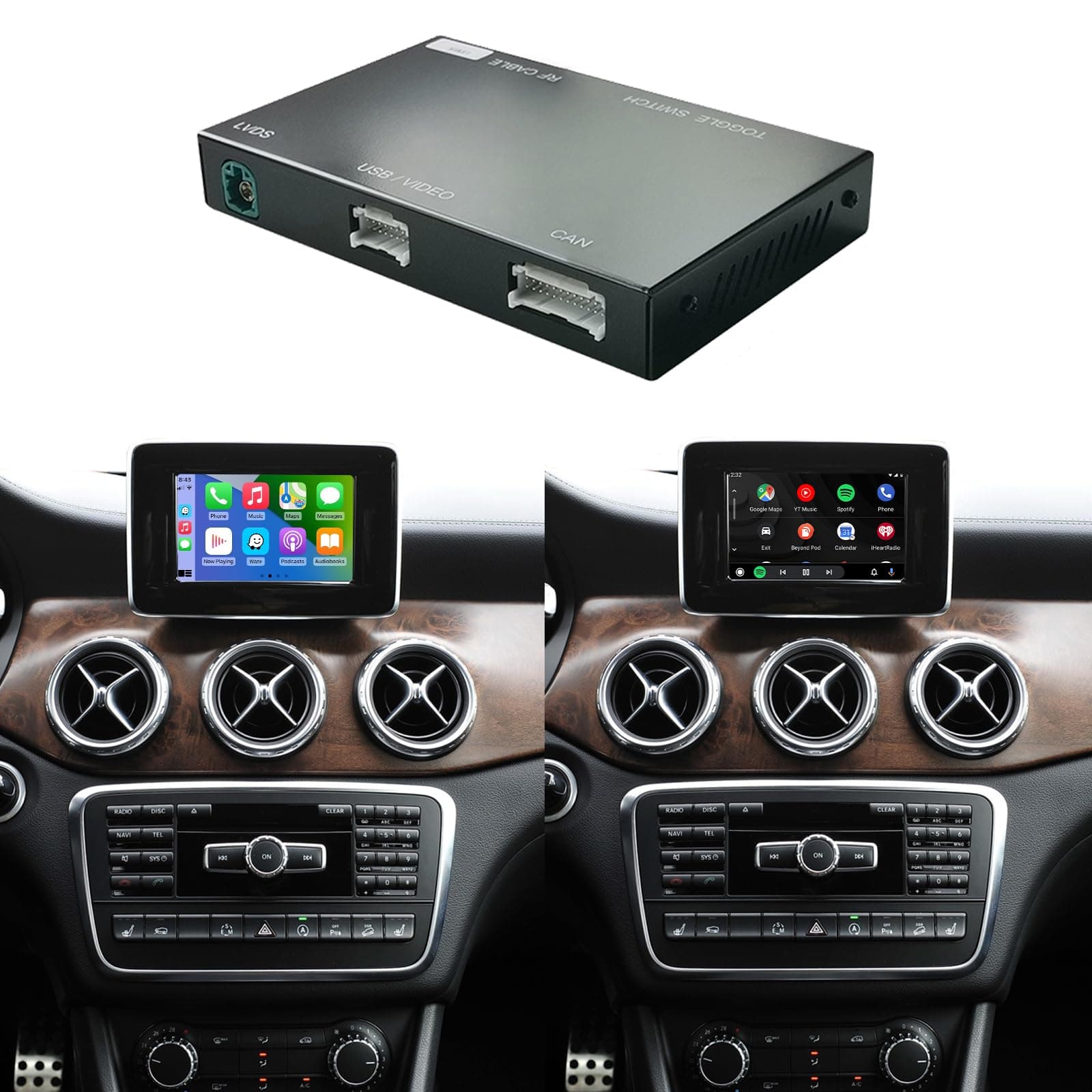
🚗 Upgrade your Benz’s brain—wireless, smart, and effortlessly sleek!
The Road Top Wireless CarPlay Retrofit Kit Decoder transforms your 2012-2015 Mercedes Benz NTG4.5/4.7 system by adding wireless Apple CarPlay, Android Auto, Mirrorlink, and navigation support. It integrates seamlessly with factory and aftermarket cameras, preserves original steering wheel controls, and allows easy switching between the original radio and CarPlay interface. Installation requires dashboard removal and aux channel activation, delivering a modern infotainment experience while maintaining your car’s authentic look.


| ASIN | B084LZL126 |
| Best Sellers Rank | #134,305 in Electronics ( See Top 100 in Electronics ) #978 in Car Stereos |
| Item model number | 32a04258-c120-45c8-81b1-ef4061c255a1 |
| Manufacturer | Road Top |
| Package Dimensions | 22 x 17 x 11 cm; 1.11 kg |
G**M
Es un producto cuyo empaque y unboxing es una buena experiencia. El manual cuenta con la información suficiente para hacer una correcta instalación. Solo recomiendo ampliamente que tambien busquen videos de youtube, sobre todo para desarmar las ventilas de aire y la radio. Si es obligatorio contar con herramientas plásticas para no dañar el tablero y sobre todo los seguros de las ventilas; se requieren unos ganchos para poderlos desasegurar. Tambien desarmadores o matraca con puntas T20 porque los van a necesitar una lámpara o tu cel para iluminar y mucha, mucha paciencia para instalarlo. Desarmar el embellecedor con las salidas de aire, contando con las herramientas adecuadas, no es tan complejo, pero si de calma. Una vez retirados, la radio cuenta con unos tornillos T20 en la parte superior. Habrá que quitarlos. Una vez realizado se bajan los seguros y queda libre. Cuidado, hay unos cables a la derecha de la radio que debemos desconectar antes de jalarlo. Debemos mover la palanca de velocidad para poder retirar la consola. Se puede hacer encendiendo el auto y moviendo la palanca o sin arrancarlo botando con cuidado la cubierta de piel con la lengüeta que desatora la palanca (ver videos de ejemplos o el manual). Una vez retirado la radio, saquen foto de como estan acomodados los cables, por si requieren ponerlo como estaba original y empezar a hacer los pasos y conectar todo como lo indica el manual. Considera de una vez donde vas a acomodar el modulo negro ya que sinceramente el espacio que ofrece el MB w204 es nulo y va a ser una verdadera pesadilla a la hora de volver a colocar la radio en su lugar. Personalmente decidí dejarlo afuera y colocarlo debajo de la guantera, en la cubierta inferior que oculta el filtro de polen, pegado con velcro de alta resistencia y practicamente pasa desapercibido. Además, si existiera algun problema, que los vas a tener al principio, habra que desconectar y conectar de nuevo, o si en un futuro instalas una camara frontal o un aparato con hdmi, como una dash cam u otra cosa, será mas fácil instalarlo con el modulo disponible a tener que volver a desarmar todo de nuevo. Ni de broma lo recomiendo y ni se puede. La conexión del cableado es relativamente fácil, solo con cuidado de la fibra optica. El arnés que conecta los cables originales del auto es muy engorroso y complejo de acomodar en su multicontacto y a la hora de reinstalar todo, por lo que es mejor colocarlo por debajo de las guías inferiores de la radio. Y sacar los cables que se conectarán al modulo negro. Antes de armar todo pruebenlo, porque al principio presentó fallas, como pantallas negras y sin sonido. Esto último se arregló conectando los cables de grnd, según el manual, de los arneses. El cable de la antena WiFi la puse en el piso de la consola central perfectamente oculto y la antena la pegué a lado del asiento del copiloto, en la consola central... muy limpio y discreto. Lo mismo con el cable AMI, muy discreto y lo oculté con la pieza de las ventilas traseras. La configuración fue rápida, pero tuve que desconectar el modulo como cuatro veces porque la pantalla se puso negra por completo y dejó de funcionar, también ocurrió que la radio no se apagaba porque el teléfono seguía conectado con el bluetooth y android auto. Como dije, se requiere mucha paciencia y tambien objetividad. Lo mas complejo de todo fue volver a montar la radio, la caja con la multiconexión del modulo negro estorba mucho y hay que probar acomodarlo por debajo del espacio de la radio y con una presión controlada. Creeme, una vez que lo lograste reinstalar ¡Jamás querras volverlo a desarmar! Lo único que me falta resolver es que el control por voz de google funcione con Android Auto, ya que la voz original del auto me indica que las ordenes realizadas por google android "No son validas" y este no se oye. Ya funciona por el momento la interfaz visual de android auto, su activación automática al encender el auto, inicio de música automáticamente, spotify, samsung player, youtube, waze, llamadas telefónicas y la cámara de reversa. Veré en los próximos días como funciona y les comento. ACTUALIZACIÓN 11/11/2022 El aparato sigue teniendo el problema de que a pesar que se escucha que se activa y el teléfono se conecta inalámbricamente, no envía señal de video al monitor del auto. Solo dejo de usar el auto por dos días y ocurre esto. Se ha solucionado de forma parcial desconectando los cables CAN, pero vuelve a fallar. Ya envié un mensaje de whatsapp al fabricante para que me de soporte técnico. Si no me responde pronto tendré que optar por devolverlo, teniendo que desarmarlo. Lo molesto es que no entre de forma normal y simplemente la pantalla se pone en negro. Actualización 14/11/22 Recomiendo ampliamente que antes de encender el auto, primero desbloqueen su teléfono y así se garantiza que entre se emparejen este y el kit. Hasta el momento eso es lo que mejor ha funcionado. Actualización 18/11/22 Producto con defecto en interfaz de video, ahora la falla es permanente, simplemente no hay video. Y nadie de la compañía responde, ni servicio técnico ni nada. Voy a proceder a desarmar todo de nuevo y devolverlo. No lo recomiendo.
J**S
This will allow you to have modern Apple/Android functionality on your legacy stereo. Sharing install experiences for others (I have a 2013 E350, other 1st generation E-class models should be similar). I'm in the USA, so I have a LHD car, not sure if this works out for RHD cars. Before you forget, go ahead and set the DIP switches according to the manual. You will need to know if you have the 5.8" or 7" screen, set the switches per the instructions, depending on what screen you have. Also go ahead and attach the two black ground wires together (one from the main harness and the other from the USB harness). You won't get audio if you don't do this, and it's much easier to take care of it beforehand. You'll need to remove the LCD, center vent trim, the radio, the heater controller, the sliding cover/cup holder, and the control knob. Plenty of videos on YT for that. I highly recommend temporarily plugging everything in outside the dashboard, to make sure it all works correctly. If you do this, go ahead and put the center vent trim in position (don't lock it in, just rest it there) and plug in the switches, or else the car will throw errors about a hazard flasher malfunction since it can't find the hazard switch. Don't forget to move the fiber over from the original Quadlock connector to the Quadlock in the harness. The release clip is tiny, it's in the top of the connector. Once you release that the two fibers come out in a black connector. Don't try to take out the individual fibers. Be careful, these are plastic fiber, not as fragile as a glass cable, but still can be easily broken if roughly handled. Once you're sure it's working then take everything back apart and start actually installing it. Here are the best ways I found to route things on my car. I located the control box behind the LCD. That is the only decent place I found that had enough room and allowed the cables to reach. Now starting from the radio cavity, thread the wifi antenna connector, and the white connectors from the two harnesses, past the vent flanges, on the left side. Tuck the wires behind the vent flange on the left side. Take the LVDS cable and run it down the right side the same way. Think of it like a V, the bottom of the V goes to the control box and the two tails stay in the radio cavity. Plug the cables into the control box, working inside the monitor cavity. Now place the control box in position behind the LCD. I had the white connector end pointed down and wifi antenna connector pointing up. It was able to tuck into a recess that extended toward the passenger side. I took a big zip tie and was able to secure the control box to a metal support behind the LCD. Plug the factory cables (LVDS and black power connector) back into the LCD and reinstall it and put the bezel back on. Now the fun part. You have to extend 2 cables to the arm rest. One for your USB and the other for the audio. Route the USB and 3.5 mm cables down past the heater control area and into the space where the cup holder goes. Follow the harness right down the center of the cup holder area to avoid interference with the cup holder. The framework that holds the control knob needs to be unscrewed (4 T20 screws) and then pull up the front end (2 clamps at the front right and left corners. Once you do that you will see a small notch at the front of the armrest compartment. There is just enough clearance to route your audio cable and either your lightning cable or USB extension through this notch and close the framework back up. Wiggle the cords to make sure they're not pinched. I left the end of the lightning cable in the armrest compartment. The red protective cover that went over the Wi-fi antenna connector is the right size to slip over the end of the cable and prevent it from shorting out inside the compartment. You won't need this USB cable except if you want to run a wired connection. (see below, I ended up running a USB extension to get the actual USB connection in the armrest cubby to allow firmware flashes) The audio connects to the adapter that plugs into the MHI port in the back of the armrest compartment. You'll need a ground loop isolator, (item ID B019FC6ZQQ) or else you will get whining noises in the audio. Put the control knob and cup holder assembly back in. Don't forget to throw a towel back over this to prevent scratching the wood. Take the wi-fi antenna and route it down to the heater control area. There is a horizontal flat spot in the structure behind the heat controls that works great to secure the antenna. Reinstall the heater controls. Now all that is left is to plug the connections back into the radio and work it back into the opening. This takes a little bit of patience. The best place for the factory Quadlock is down low behind the heater controls. You may have to put the radio in part way and reach through the vent opening and down behind the radio to help get things where they need to go to allow the radio to seat flush. Don't force it, if it won't set in easy, you are pinching something. Put your vent back in and you're done except for some programming. If you don't want the factory MB voice (who does?) then go into Engineering Mode on the head unit (press and hold 'end call' + '1' + '#' buttons for 10 seconds). Navigate (using the console knob) to menu 7.7 (HU Parameter), then scroll down to find SDS/TTS in the list. Select this and choose Disable. Now hit the Back button until you're back at the root menu, then find menu 9 (Reset) and run this. It does not factory default the HU, this just reboots the unit. This is necessary to make it accept the changes. **new content 4 April 2022, after living with it for a month or so...** I was having problems with it connecting and staying connected. Turns out you have to be within about a foot of the wifi antenna for wireless CarPlay to work effectively (or maybe it's just where I mounted the wifi antenna, above the climate controls). If I leave my phone on the belt clip on my left side (in a USA LHD car) it had a hard time connecting. Once I realized this and put the phone in the cup holder or center console it works flawlessly. If I get motivated enough to pull the radio out again I may try moving the antenna but that's a big job, vs just taking the phone off my belt and putting it in the cup holder/arm rest cubby. Go ahead and get a short (2 ft) USB 2.0 extension, you will want the USB port extended out to the armrest cubby so you can flash the firmware if needed. Be sure to use a USB 2.0 cable, the USB 3.0 cables are too fat and you don't need the extra USB 3.0 wires anyway. If your head unit doesn't have the AUX as one of the audio choices then go into engineering mode and look for the menu to enable it. Be sure to do the 9. Reset afterward or it won't accept the changes.
E**R
Well for starters out of the box you got to take directions for what ever reason with a grain of salt cause the toogles are wrong, i figured it out but that being said i cant even install it cause of the size of wire harness that came with it is way to bulky and makes it impossible to push radio back into place even if you try to push connector under radio, so being as it is i have not been able to enjoy it at all short from hooking it all up and making sure it work to begun with... Oh and tying the grounds together to take out the whine doesnt really work well...it does a little bit but its still very well present...not happy with product at all.....would not recommemd
C**Y
I purchased my 2015 GLA 250 CPO as a bare-bones (no options) well-priced entry point for Mercedes. But, I quickly learned that I needed a backup camera and the so-called "infotainment system" was not very good at providing info (nor entertainment)! (NTG 4.5) I had no navigation, no backup camera, pretty much nothing but a radio and an input for an iPod. It left me using my Android phone for pretty much everything and nothing was integrated with the car. I purchased this unit and I must admit it took me something like a week to install. Granted, I didn't need the car for the week and it was 95 degrees in the shade sometimes, so I didn't spend a lot of time on it each day. But, this installation is not for the faint of heart. It is actually very simple in terms of connections, but taking your Mercedes apart can be tedious and scary. I would watch YouTube videos for different types of installations showing how the different parts of the car were put together, and carefully do one section at a time until I had my entire dash and tailgate carefully disassembled. It was a frightening sight but it all went back together beautifully! I added two cameras: a front camera in the emblem and a rear camera in the rear hatch-latch (each purchased on Amazon for under $40). These work GREAT! When I shift into reverse, the rear view pops up on the screen and when I shift into drive it switches to the front camera for 10 seconds. This is absolutely awesome for parallel-parking in tight spaces. I am having some trouble with connecting to Android Auto; it only seems to work 1 in 3 times or so. But, I have come to realize it is my phone because my husband's phone (we both have Moto Z3s) connects every time. I might reset or replace my phone sometime soon because I expect that will resolve itself with a change of phones. My phone has been acting weirdly in other ways lately, so I am pretty sure something is messed up with my phone. There are two options I wish this unit had in order to make it absolutely perfect: 1. an interface to an OBD2 scanner. Android Auto has no app for that (DUH??) so it would be nice if I could view my real-time dash information on the unit (notice in my photo I have my phone mounted below the stock screen, running Torque Pro). 2. an add-on inline DVR that could record images from the camera. Like, a pass-thru RCA in/out that captures the camera feed as it goes through the unit. That would turn my front camera into a "dash" cam but very unobtrusively. I cannot imagine such a thing doesn't already exist, but I haven't been able to find anything that will do that. The manufacturer points out that they support dashcam standards, but I'm looking not to use my dashcam as the camera feed, but the camera feed as my dash cam. Hope that makes sense. Both these features would be really nice to have, but this thing is an awesome upgrade as it is already. I got what was probably $1200 worth of functionality for $300 (plus a bunch of sweat & swearing). The instructions were perfectly adequate for what needed to be done. I never needed any support so I cannot comment on that. Overall, I am thrilled!
J**.
I've been using this for almost 5 years and it is pretty much trouble free. The backup camera works fine, and installation in an SLK was straightforward, main thing was to get bluetooth antenna somewhere where it wasn't shielded by metal. Had a few initial issues with setup, but TS sent a newer software version and so far only minor issues; TS was very responsive. Biggest issue is sometimes wireless doesn't immediately connect, however by exiting the system and returning to the menu fixes that; and it isn't occurring often enough to be more than a minor annoyance. Wired connections work just fine. I ran an extension to the storage compartment between the seats with an USB-A plug to plug in wirelessly and hide the plug. I have not updated the software in 4 years, mainly because it works and my theory on upgrades if it works fine don't bother. It works fine with the latest beta iOS 26.1. I gave it 4 stars instead of 5 because of the occasional glitches connecting wirelessly. I can recommend this as a way to add CarPlay to an SLK.
ترست بايلوت
منذ أسبوعين
منذ يوم واحد