Some deliveries may take a little longer than usual due to regional shipping conditions.

قم بتنزيل التطبيق


معلومات عنا
حقوق الطبع والنشر © 2024 Desertcart Holdings Limited
قم بتنزيل التطبيق


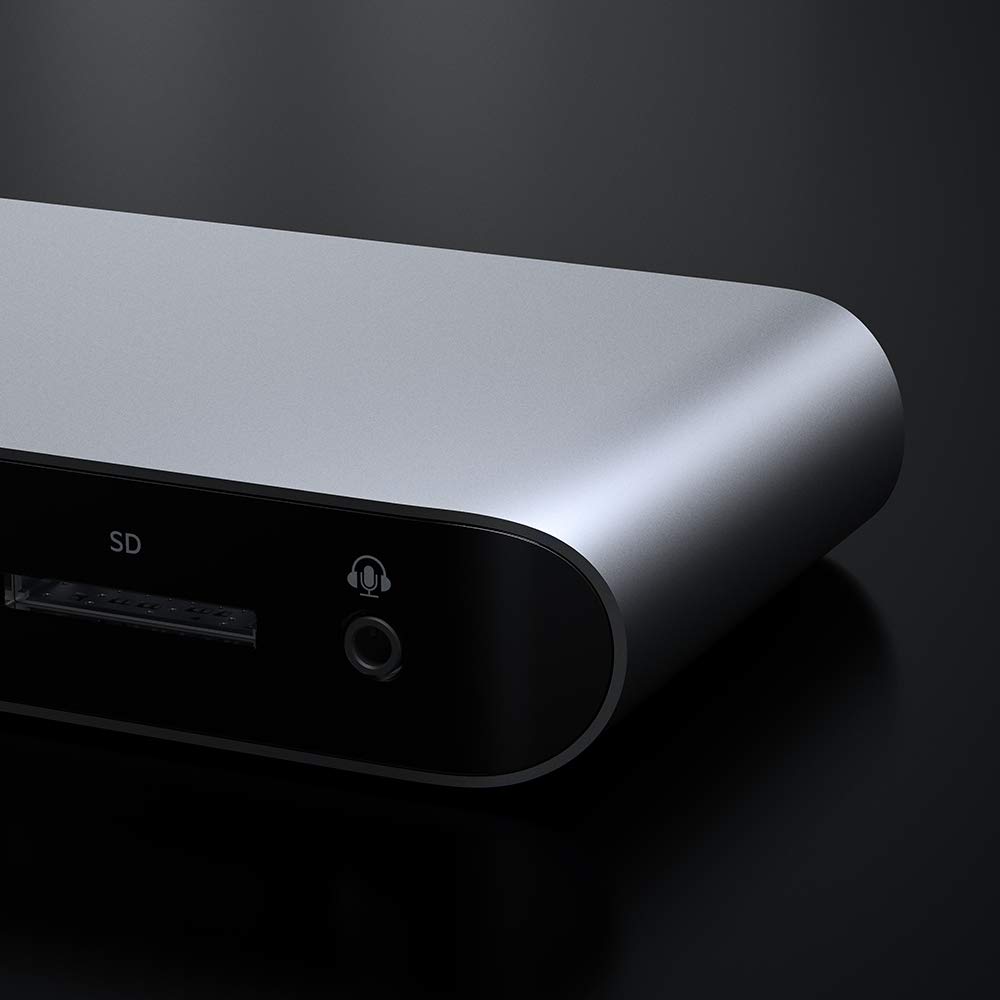
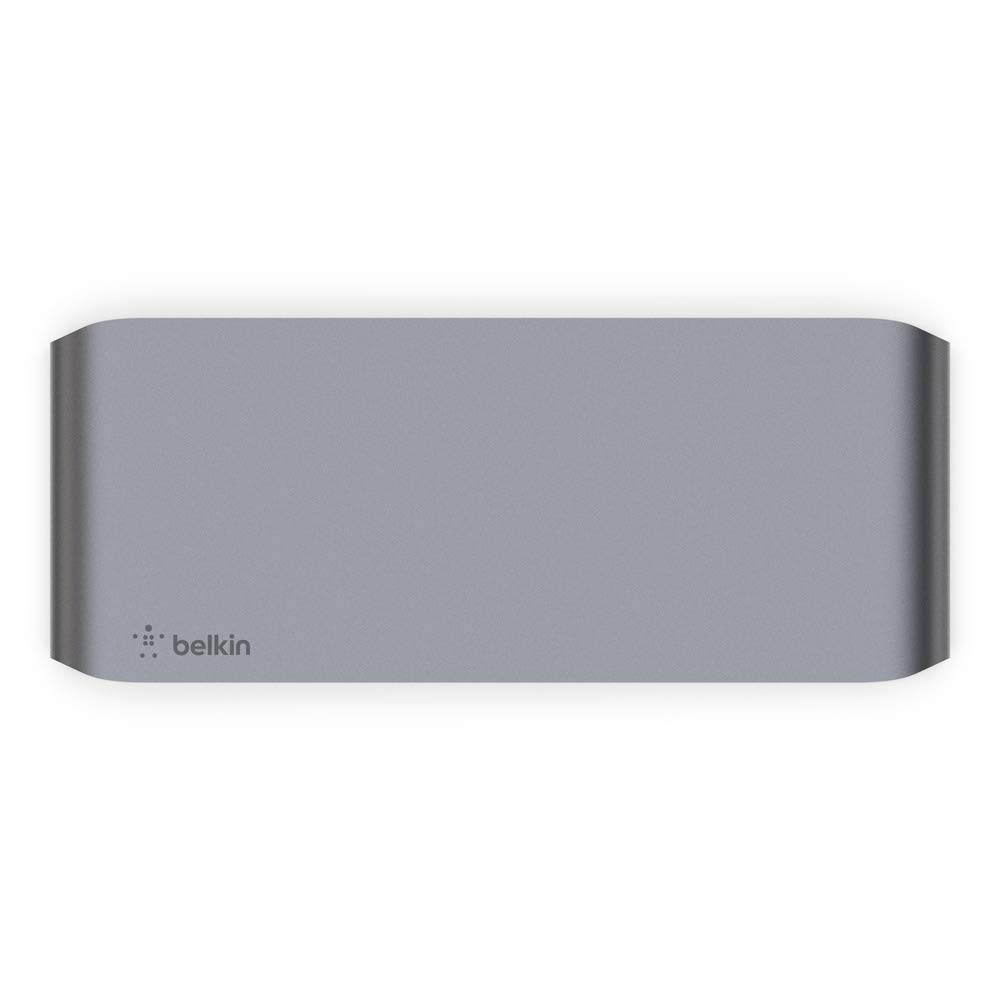
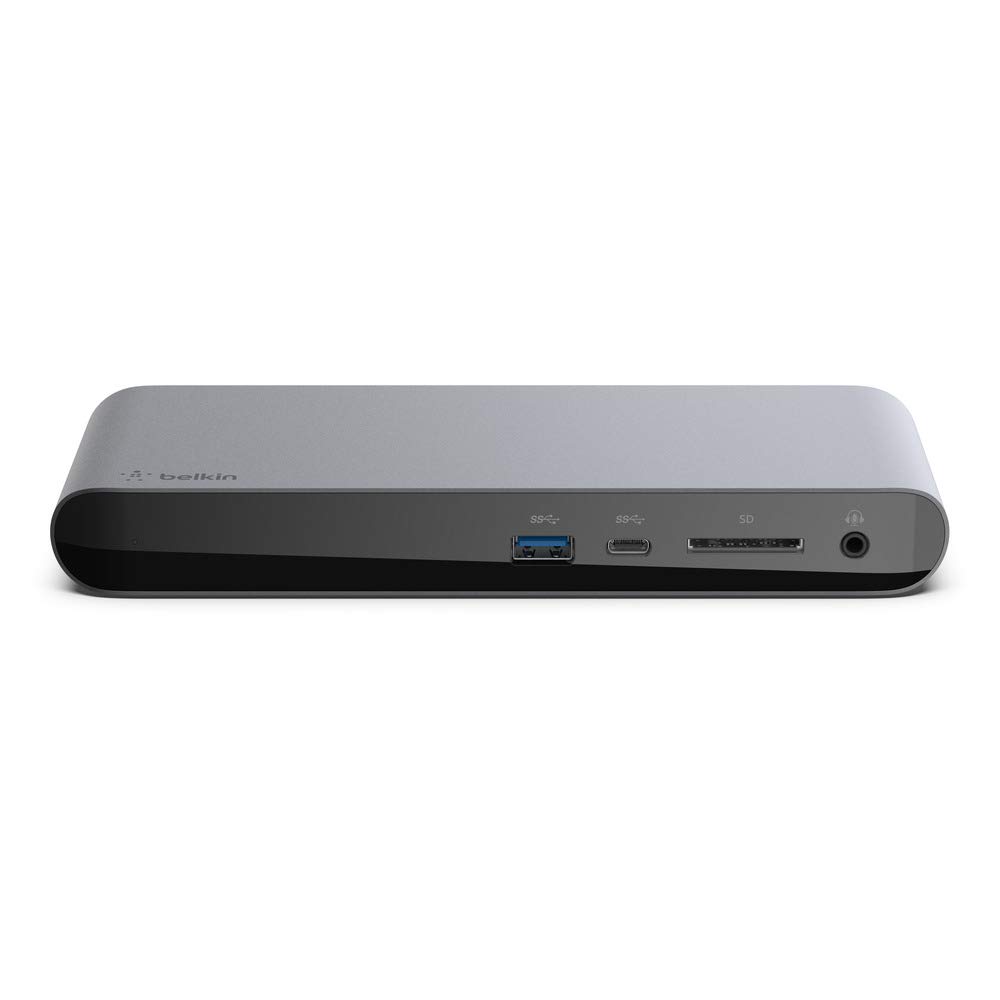
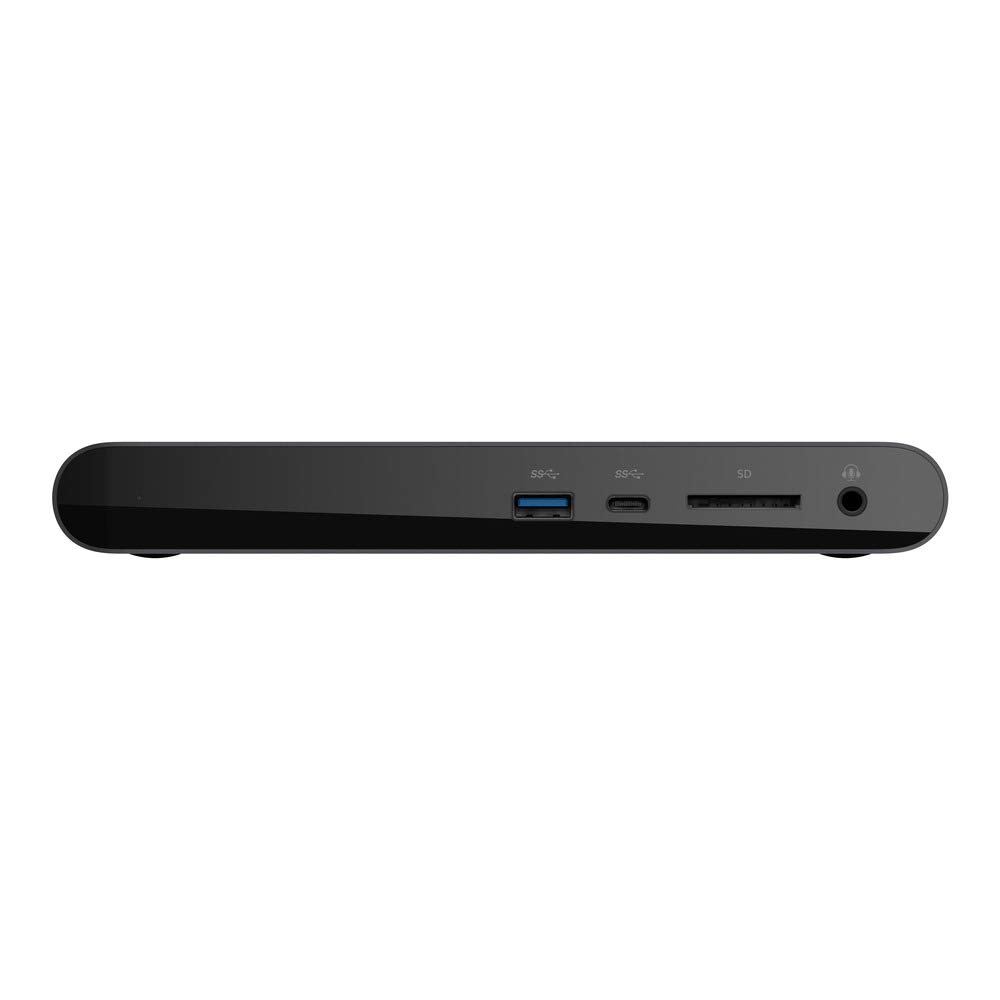
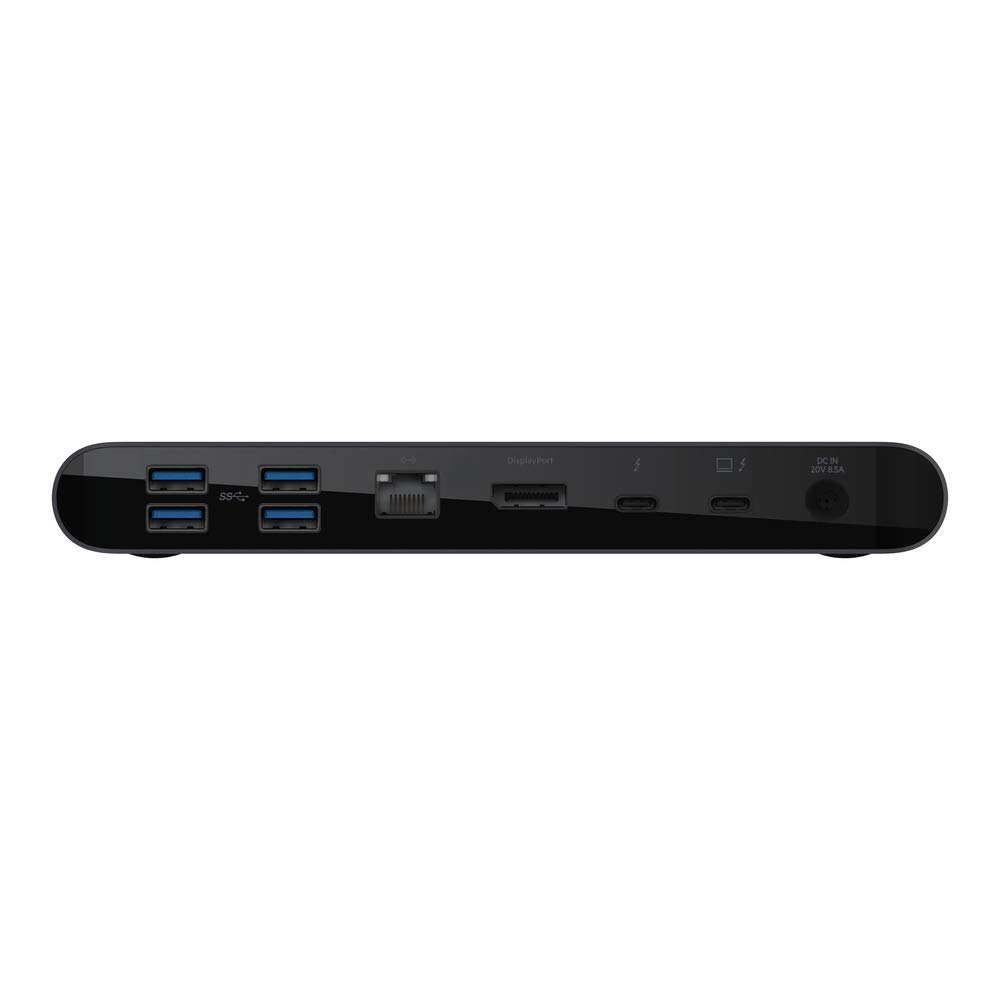

⚡ Elevate your workspace: Power, speed, and pixels in one sleek dock.
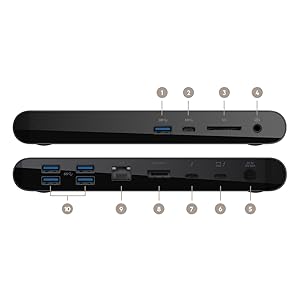
The Belkin Thunderbolt 3 Dock Pro is a premium USB-C hub designed for Mac and Windows professionals. It features 12 ports including Thunderbolt 3, USB-A/C, Ethernet, SD, and audio, supports dual 4K monitors at 60Hz, delivers ultra-fast 40Gbps data transfer, and provides 85W upstream charging—all bundled with a 0.8m Thunderbolt 3 cable for flexible setups.



| ASIN | B07YLMJZXB |
| Best Sellers Rank | #105,918 in Computers ( See Top 100 in Computers ) #1,834 in USB Hubs |
| Item model number | F4U097tt |
| Manufacturer | Belkin |
| Product Dimensions | 24.77 x 13 x 2.01 cm; 421.84 g |
S**S
Does what it is intended to do
Amazing thunderbolt 3 dock. It does the job well and looks good too. I bought it to connect to my monitor with Dp 1.4 and ethernet. The only gripe I have is that it does get hot to the touch, but this is expected of TB docks.
S**G
The main issue everyone has is with the second display port. I am running an intel mbp. The issue is when the first monitor connects, mac os switches to 64hz refresh rate. The monitor still somehow works. But when I plugin the second monitor, and it also switches to 64hz, it doesn’t work. So I had to bring both monitors to 60hz in MacOS settings and everything is working now.
L**T
Setup as follows: Dell XSP 13 9310 and 2-Dell 24" P2421DC QHD 2560x1440@60Hz (2K) monitors. Tried the OWC dock first and sent it back. Issues with LAN connectivity and second monitor flickering... Set up includes: 1.) DELL XSP 13 - Thunderbolt 4 connection to Belkin TB Pro 3 Dock: Belkin Thunderbolt 3 Cable (included with Dock) 2.) Belkin TB Pro 3 Dock to Monitor 1: Belkin Thunderbolt 3 Cable (2.6ft) (Purchased on Amazon) 3.) Belkin TB Pro 3 Dock to Monitor 2: Cable Matters 8K Display Port 1.4 Cable (3ft) (Purchased on Amazon) Belkin TB Pro 3 Dock - LAN, monitors and all accessories working perfectly. Dock charges XSP 13 and powers everything with no issues.
A**L
La velocidad del docking station es increíble, y la conectividad que aporta es una maravilla, el ethernet va rapidísimo y soporta mi monitor principal a 144hz conectado a mi Mac book pro, no necesita drivers, es sólo plug and play, sin duda un dispositivo que aporta todos los beneficios que menciona conectando un sólo cable a mi laptop!
D**N
I have this connect to my Gigabyte AERO 15 OLED Laptop, via Thunderbolt 3 and the dock apparently is not able to support 2 ACER ED321HQU 31.5 inch 2k (2560 x 1440) Monitors, this is a known issue to Belkin apparently, and they do not have a fix. I have been told that thats just how it is, and to return it if i don't like it. which i will be doing. the issue affects some ACER and LG monitors. at the moment it seems to be a bit of a luck of the draw if your monitor setup is supported or not.
J**J
EDIT: It's now 1/19/26, I bought this around January 2025, zero issues with the dock or charging, working like a champ. I have an MBP M3 Pro, I did a lot of research into the cheapest solution for: 1. One cable to plug into the MacBook Pro. 2. Must support dual external displays (I use 1080 not 4K). 3. Must work in both open and clamshell mode. 4. Must charge the MacBook Pro. 5. Must support peripherals through my Cable Matters USB switch. 6. No software installation is required, the dock must support all functionality out of the box without any additional software (ex: DisplayLink) or drivers. 7. All of these must work on Apple Silicon. The cheapest docks I tried didn't work, they would either mirror the display or not show the desktop on one of the displays at all, and the reviews were also useless since they were all old reviews for Intel not Apple Silicon. I chose this one because my company gave me a Belkin dock for my work MacBook Pro (also an M3 Pro). At the office I use that dock to get dual monitors in both open and clamshell mode. The Belkin dock they gave me was an F4U095, which is their Thunderbolt 3 Express dock, this one is the F4U097 which is their Thunderbolt 3 Pro dock. Because the Express version of the dock works, surely this Pro version would work with my personal MBP M3 Pro. I am pleased to report that this does indeed fulfill all requirements above, at its price it's probably the best option. You won't find anything cheaper than $100. Here are some specifics about my setup (I made a diagram as well): * My mouse, keyboard, headphones and a USB flash drive are connected to a USB switch from Cable Matters (ASIN: B0CT6CK72N), I connect this to the USB-A port on the back of the Belkin dock through a USB-C cable (ASIN: B01GGKYIHS) and a UGREEN USB-C to USB-A converter (ASIN: B0CY1Y3TSQ). I connect to the dock through USB-A because with my setup there are no free USB-C ports on the back of the dock, there's one on the front but having the cable go around to the front is ugly. * Samsung G50F 32" display, connected by HDMI to DisplayPort on Belkin dock (cable ASIN: B015OW3M1W). * Acer K242HQL monitor, connected by HDMI to Thunderbolt 3 Port on Belkin dock (cable ASIN: B083KTYFCW). So even with this fairly complicated setup it works. If you have a less complicated setup, say you only have your MacBook and this dock, no PC, no USB switch (you're going to plug peripherals directly into this dock) I would say it's guaranteed to work. My MBP M3 Pro is always in clamshell mode in a vertical stand, I never unplug it or remove it from its stand. Only one cable from the power delivery port on the back of the Belkin dock connects to my MBP, it provides 85W of charging power along with the connections to everything which is way more than enough, I used to charge at 67W even 45W would probably work, 20W would but only if the Mac was sleeping. ❌ Problems Encountered: ❌ It takes forever for optimized battery charging (the 80% limit thing) to kick in if you unplug it. I'm not sure this is an issue with the dock, I think it's just that I never unplug my MBP from power and the machine learning stuff Apple uses for it is just trash. My Asus G16 laptop has a battery charge limit feature that works flawlessly. With MacOS every time I disconnect power (which is never besides a power outage), it takes at least two weeks at 100% until the charge limit kicks in. If you unplug it more frequently than I do the algorithm might make it kick in faster, who knows. I'm aware that people use third-party software (AlDente) to enforce a charge limit, I don't want to. Once the 80% limit kicks in and MacOS recognizes it (shows "Not Charging: Desktop Mode" in Battery settings), it works as I expect it to and stays at 80% for weeks at a time even through restarts, it's just disconnecting it from power that messes with it for me. 🤔 Miscellaneous Things: 🤔 This dock behaves differently when you put the MacBook to sleep by explicitly telling it to (click Apple icon -> "Sleep") versus inactivity. If you explicitly put the MacBook to sleep through the Apple icon the dock will show an orange status LED (indicating no connection) and the dock will become cool to the touch, if you let it fall inactive the dock will show a green status LED (indicating connection) and the dock will remain warm as if it's in use. Neither state will affect charging or waking; even with an orange status LED it's still treated as if connected to the charger and you can still wake it up by hitting any key on the keyboard or pressing any mouse button. Obviously if you want to save electricity you'd want to explicitly put it to sleep. I noticed even if you explicitly put it to sleep the orange status LED will turn green for a minute here and there, some kind of waking going on but returns to orange for most of the time. 🤔 The "System Information" shows its state as "Not Charging: Desktop Mode" once it's at the 80% charge limit and nothing funny happens with the charge cycle count either, in case you're like me and worried some charging issue with the dock will cause extra cycles and wear on the battery. The charge cycle count in "System Information" was at "9" when I started using the dock around January 2025, it's at "11" today (1/19/26), so a whole two cycles of charge for an entire year, those charge cycles were all due to MacOS charging to 100% either to fix the SOC estimation drift or due to power outages. 🤔 The "System Information" app shows that the charging wattage is 85W which correctly matches Belkin's claim. It also shows this dock in the Thunderbolt section which is why it works well with dual displays, other docks show up in the USB-C section because they're USB-C docks, not Thunderbolt. 🤔 The Belkin Thunderbolt 4 docks would likely have met all of my requirements as well, but they cost more and have fewer ports.
ترست بايلوت
منذ شهرين
منذ شهر