We remain fully operational. Our teams are working around the clock to ensure your deliveries continue safely.

قم بتنزيل التطبيق


معلومات عنا
حقوق الطبع والنشر © 2024 Desertcart Holdings Limited
قم بتنزيل التطبيق


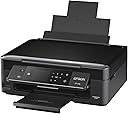

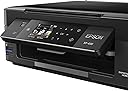
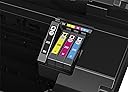
Epson Expression Home Xp-430 Wireless Color Photo Printer With Scanner And Copier: Epson Expression Home Xp-430 Wireless Color Photo Printer With Scanner And Copier. Review: I literally bought this because it was the cheapest printer I could find brand new. Raise your hand if you did the same... My retired mother needed a printer for her desk for the infrequent document here or there that she may need to print out. This was the cheapest one. I bought it. Surprise, it's actually a pretty darn good printer. Quality and fit & finish are just as good as the high dollar Epson printers I looked at in the local Staples. Design and looks wise, it's a very attractive piece, with touches of matte and gloss black here and there. The screen is a cool feature and is easy to read and navigate through. Setup was a breeze (as it should be for anyone installing a printer in this day and age). The included install software worked well and didn't include a bunch of bloatware, which in itself made me happy. Print quality is average for an ink-jet printer. Colors are vivid and blacks are black. The printer spools up quick and docs print quick, printer software isn't clunky or obtrusive. Copy function works well and could prove useful. Overall, it's exactly what you'd expect a $50 ink-jet printer to be. How reliable and trouble free it will remain after a few years, we shall see. I am confident in it and don't regret the purchase at all. Its doing its job nicely. Review: Printing is good and the unit is reasonably priced. However the price of the ink is expensive and don't last long. Remanufactured ink cartridges are iffy because the machine can tell the difference by the chips and would reject the non-OEM. You cannot have the original cartridges refilled because of the chip as well. Machine failed after 1 year of light use. No red ink coming through. Changing the cartridge did not correct.









| ASIN | B01BIGO5IW |
| Are Batteries Included | No |
| Connectivity Type | Wi-Fi |
| Customer Reviews | 3.6 3.6 out of 5 stars (1,371) |
| Date First Available | 10 Sept. 2016 |
| Dual-sided printing | Yes |
| Guaranteed software updates until | unknown |
| Hardware Platform | PC, Smartphone, Tablet |
| Item Weight | 4.22 kg |
| Item model number | C11CE59201 |
| Lithium Battery Energy Content | 4 Watt Hours |
| Lithium Battery Packaging | Batteries contained in equipment |
| Lithium Battery Weight | 4 Grams |
| Max copy speed (black and white) | 9 ppm |
| Max input sheet capacity | 100 |
| Maximum black and white print resolution | 1200 x 2400 dpi |
| Maximum colour print resolution | 1200 x 2400 dpi |
| Number Of Lithium Ion Cells | 4 |
| Processor Count | 2 |
| Product Dimensions | 29.97 x 39.12 x 14.48 cm; 4.22 kg |
| Scanner type | Photo |
| Sheet size | 21 centimeters |
| Standing screen display size | 2.7 |
| Warranty type | limited warranty |
| Wireless Type | 802.11bgn |
D**N
I literally bought this because it was the cheapest printer I could find brand new. Raise your hand if you did the same... My retired mother needed a printer for her desk for the infrequent document here or there that she may need to print out. This was the cheapest one. I bought it. Surprise, it's actually a pretty darn good printer. Quality and fit & finish are just as good as the high dollar Epson printers I looked at in the local Staples. Design and looks wise, it's a very attractive piece, with touches of matte and gloss black here and there. The screen is a cool feature and is easy to read and navigate through. Setup was a breeze (as it should be for anyone installing a printer in this day and age). The included install software worked well and didn't include a bunch of bloatware, which in itself made me happy. Print quality is average for an ink-jet printer. Colors are vivid and blacks are black. The printer spools up quick and docs print quick, printer software isn't clunky or obtrusive. Copy function works well and could prove useful. Overall, it's exactly what you'd expect a $50 ink-jet printer to be. How reliable and trouble free it will remain after a few years, we shall see. I am confident in it and don't regret the purchase at all. Its doing its job nicely.
A**R
Printing is good and the unit is reasonably priced. However the price of the ink is expensive and don't last long. Remanufactured ink cartridges are iffy because the machine can tell the difference by the chips and would reject the non-OEM. You cannot have the original cartridges refilled because of the chip as well. Machine failed after 1 year of light use. No red ink coming through. Changing the cartridge did not correct.
R**R
This is my 3rd Epson printer in a decade and will be my last. I've had this printer for 2 years. At first there were no 3rd party inks available so I had to buy the overpriced OEM inks. The problem here is Epson printers clog constantly and cleaning the head burns ink fast. Then the OEM cartridges are only partially filled to begin with. The fact the "XL" carts are the same size proves that. This printer clogged more than any Epson I've had in the past. Often had issues with the WiFi disconnecting as well. Scan a page to PC and 15 seconds later printer is disconnected. >< Finally 3rd party inks arrived and I was saved. Better longevity at 1/4 the price and no noticeable degradation in quality. Fast forward a year and I made the mistake of allowing the printer software to update itself. Immediately it stopped recognizing the ink cartridges and fully disabled itself from any action until I inserted an official Epson cart. Even though the supreme court already came down on printer manufacturers saying they cannot do this Epson still does. Time for a multi billion dollar fine... After some research I've discovered Epson is the most aggressive in this practice. I let it go for several months and purchased a Samsung laser printer that has been ridiculously more reliable, but it's monochrome only. I needed to print something in color recently so I decided to take the time to force the printer into recovery mode and force a firmware downgrade. I'm not buying $60 in ink to print 5 pages, especially when I have a fresh set of carts in the printer and 2 more still in packaging. Success! Printer once again recognizes the carts but heads were clogged badly. Ran the "clean print head" function many times which has NEVER actually worked. No effect. I actually took the time to DISMANTLE the carriage enough to remove the print head for cleaning, rinsed it twice with warmed distilled water, gobs of dried ink came out. Reassembled, inserted fresh carts and heads are still horribly clogged. Thank God I didn't dump another $60 on official carts again. With all the issues I've had with Epsons constantly clogging, this one especially, shady updates to force you into an ink monopoly, spotty wifi, and horrible cartridge capacity I will never purchase an Epson product again. TLDR: Nothing but problems with anything that says Epson on it.
A**X
I misread the product description and misunderstood it to come without ink. Not true it came with all the color and black and white ink, which I installed. Installation instructions appear simple, but they assume a level of familiarity that I didn't have. That's OK; I put it together in about an hour. In black and white the prints are clear, and the pages printed twice as fast as my four-year-old HP that stopped working with my vintage Mac after numerous Mac software updates. This week's XP-430 challenge was to scan several multipage documents, including an 11-page title insurance policy. Again the instructions were incomplete, even those I found on the Web and You Tube. So I'm pasting here my detailed instructions on how to scan to a Mac from trial, error and success. 1. Go to Mac computer Settings 2. Open Printer 3. Click “scan” 4. Click “open scanner” 5. Place document on scanner screen; close lid. 6. Select "kind," "scan to," and "format." 7. Choose pdf format (the only format that combines multis into one document) 8. Check box for “combine into single document.” In "Name" field, insert a name for the document. 9. Click “overview.” Image of document will appear on computer screen. Using mouse pad, adjust the dotted lines to enclose the document text within the dotted lines. What is outside lines will not be scanned. 10. Once certain all text is within the lines, click “scan.” 11. After computer screen says “saving image” and scanner quiets, remove scanned document and place second page on scanner screen. 12. Click "overview." Review overview image to ensure all data is within the lines. 13. Click "scan." 14. Continue process until all document pages are scanned. 15. On Mac, click “Finder” on menu bar. The scanned document will be at the top of the list. Click it and ensure all pages are scanned as desired. 16. Now save the document to your documents. 17. Delete scanned imagfrom “Finder."
N**Y
I find the print quality to be top notch, but the printer has a habit of amassing some residual build up on the top of the first page for some reason. Not great if you are looking to make neat documents. I also use this printer for waterslide decals (which requires photo quality printing) -- this printer certainly provides great detail and great quality reproductions. But if you are not careful about your print media selection, you can get some skipped or jagged lines in your results. But when it's all the right settings, the results are quite top notch. Also, the printer is very quiet! Finally, if you make waterslide decals like I do,ensure that the ink on the page is fully dried before using a sealant. Or you will get a milky yellowish hue around the decal. Not noticeable if this is going on a natural finished headstock or a dark coloured one, but it will be noticeable on light coloured ones.
ترست بايلوت
منذ شهرين
منذ شهر