Buy anything from 5,000+ international stores. One checkout price. No surprise fees. Join 2M+ shoppers on Desertcart.
Desertcart purchases this item on your behalf and handles shipping, customs, and support to KUWAIT.
🔗 Unlock your radio’s full potential—program like a pro, anytime, anywhere!
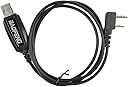
The Baofeng Programming Cable is a must-have USB to Serial adapter designed for professional and hobbyist radio users. Compatible with a wide range of Baofeng two-way radios and supporting Windows 7, 10, 11, and Linux, it enables seamless programming via CHIRP software. Its durable braided design and plug-and-play functionality ensure hassle-free setup and reliable performance, making it the go-to accessory for managing your radio frequencies with precision and ease.


| ASIN | B00CP0I474 |
| Best Sellers Rank | #138 in Portable FRS Two-Way Radios |
| Brand | BAOFENG |
| Brand Name | BAOFENG |
| Cable Type | USB |
| Color | Black |
| Compatible Devices | Tablet |
| Compatible Phone Models | Two Way Radios |
| Connectivity Technology | USB |
| Connector Gender | USB |
| Connector Type | Micro USB |
| Customer Package Type | Standard Packaging |
| Customer Reviews | 4.4 out of 5 stars 5,168 Reviews |
| Ethernet Cable Category | Cat 5e |
| Global Trade Identification Number | 00702565418350, 06955170824861 |
| Included Components | 1x Baofeng Programming Cable for BAOFENG UV-5R/5RA/5R Plus/5RE |
| Indoor Outdoor Usage | Indoor, Outdoor |
| Item Shape | Round |
| Item Type Name | two-way-radios |
| Item Weight | 0.05 Pounds |
| Manufacturer | BaoFeng |
| Model | BF-S122 |
| Model Name | GA-2S GA-5S 888S UV-5R UV-5RX3 UV-5R EX |
| Number of Items | 1 |
| Number of Pins | 2 |
| Other Special Features of the Product | Braided |
| Part Number | 28-020-122 |
| Recommended Uses For Product | programming Baofeng two-way radios |
| Special Feature | Braided |
| UPC | 702565418350 799872084699 734010604384 780746821267 |
| Unit Count | 1.0 Count |
| Warranty Description | No |
R**N
Good quality cable
This is a good quality cable had no issues with it. Worked well with my windows computer.
A**N
Works well
Works well for the money
D**Y
Cable is good, included CD is to be avoided
I had very little trouble getting this cable to work. Had I heeded the advice to toss the included CD and download everything from miklor dot com (or the CHIRP site) I would have had less trouble. NOTE: For those of you who are familiar with serial communications (and perhaps some that are not) it may help to know that the cable is just a USB to Serial adapter. The driver install is all about the cable, NOT the radio. You do not need to use the radio while you are getting the cable installed and working. The CHIRP software will handle the communications to the radio once the cable is working. If you install the cable driver and the cable is plugged in, look in Device Manager. If you do NOT have a yellow triangle (or any other warning) on the Prolific USB to Serial port in Device Manager, you SHOULD be good to go. Here's the short version for the ADD folks ;-) Toss the included CD, download the Prolific driver from Miklor dot com, install the driver and plug in the cable. Make a note of what COM port is assigned to the cable. Download the latest daily build of CHIRP. Enjoy! Here's the details of what I did. This may help some of you who tried the included CD first like I did. (just in case you don't know... you can open up Device Manager by right clicking on Computer and then opening Device Manager) 1. I tried installing the Vista driver from the included CD which included plugging the cable into the laptop and radio. It failed (yellow triangle in Device Manager). 2. I installed the latest daily build of CHIRP (this didn't help my cable problem, but it didn't hurt anything either). If I was doing this all over again I would probably wait until the cable was working before I installed CHIRP. I really don't think it matters much when you install CHIRP. 3. I removed the driver from Device Manager, I checked the Uninstall Driver box. (I would recommend you skip steps 1 & 3) 4. I un-plugged the cable from the radio and the laptop. 5. I downloaded the Prolific 3.2.0.0 driver from Miklor. 6. I installed the Prolific 3.2.0.0 driver. 7. I plugged the cable into the laptop, Windows recognized it and installed the device (cable) successfully. (BTW: it assigned COM5 to the cable, you will need to know this later) 8. I opened up CHIRP. 9. With the radio turned off I plugged the cable into the radio. 10. I turned on the radio. 11. I downloaded the data from the radio (Radio --> Download from radio). I got a dialog box asking for settings. I set the COM Port to match the cable (COM5). I set the Vendor to Baofeng and the Model to UV5R and clicked OK. 12. I got the Cloning Progress box with progress bar. When that was done I got the CHIRP spreadsheet view. I was able to edit the config and Save it as a file. (I saved a backup of the default config before I made any changes). 13. I uploaded the data back to the radio (Radio --> Upload to radio). 14. I got the Cloning Progress box again. When that was done I unplugged the radio. That's it! BTW: I tried the Import from Repeater Book and I was impressed at how well it worked. I recommend trying that.
T**A
Worked but YMMV
I picked up this programming cable for my Baofeng UV82, and overall it does the job really well. It was easy to use with Chirp software, and I had no trouble getting everything programmed the way I wanted. For the price, I’d say it’s definitely worth it. That said, there are a couple of downsides. The cable quality feels a bit hit or miss, and I’ve read some reports about counterfeit chips. Mine worked fine, but it’s something to be aware of. Also, compatibility isn’t perfect since it doesn’t play well with Mac OS, and some people have trouble with Windows as well. I personally had to try plugging it in a couple of times before it connected properly.
B**Y
Seems to be genuine AND works on 64 bit Windows 8
I just bought 2 new Boafeng UV-82 radios.... i have zero experience with any kind of radio like this. I found using the radios, the cable and the free software for programming the radios relatively easy to understand and use. I have to believe that the people who are having problems with this cable and windows 8 are not using the correct driver.... or have a hardware problem with either their PC and/or there USB port. I have windows 8 64-bit version on a PC I built myself several yrs ago. When I first plugged the cable in a free USB port, windows did the normal plug n play thing to load an appropriate driver. I did not use the disk that came with the cable. Windows just looked for whatever it could find on its own.... and failed. As I expected the cable was not successfully recognized by windows. The windows control panel device manager showed prolific driver error 10. Amazon doesn't like you to post Web addresses...so, to find the driver you need from a trustworthy site, Google search for this exact text "vex forum windows 8 prolific driver zip". This will find the link to the Vex Robotics message board where this same driver issue is discussed and Vex provides a link to the driver you need. Unplug the cable from your pc... download and install the driver software then plug the cable back in... the new "old prolific" driver will be installed and the error 10 should go bye-bye. Hope this works for you. This cable is cheap and works just fine... try it. It is indeed a solid cable. Good strong build quality, heavy plastic/rubber casing, fits tightly in the radio... and it works. Has the BaoFeng emblem on it.... genuine looking at a minumum. As long as it works, who cares.
M**T
Worked well with both Baofeng and Retevis
The cable worked well in Windows 11 (no driver installation required) and Linux. I was able to successfully program my Baofeng radios, it also worked with Retevis (all through CHIRP Next, the Python version) Note: Retevis (Windows only) provides a "test" app to detect the chip in the cable. It complained about not seeing the expected microchip, but their proprietary software still worked. CHIRP software on Linux just worked.
A**S
WORKS WITH BAOFENG/POFUNG GT-1
I originally bought this cable to program my POFUNG GT-1, Baofeng Pofung GT-1 UHF 400-470MHz FM Two-way Ham Radio, 16 Channels, 1800mAh Battery (Orange) a 16 Channel UHF handie-talkie that literally can not operate at all without this adapter to program the frequencies using your PC. I used the stock software that came with the GT-1 and had no problem getting the hardware (cable & radio) detected using Windows 7.0 Professional 64-Bit. However, I was not able to get the hardware to detect using Windows 8.1 Professional 64-Bit version. I was also unable to get the software to load AT ALL on Windows 7.0 using XP compatibility mode, so I will assume that this hardware does not work with Windows XP, either. Oddly, the software does mention supporting Windows VISTA. Go figure. Unlike some reviewers here, I had no problem getting the connector to "fit" with the radio. Everything seemed to fit snugly. The USB end of the cable is a tad large though, so I wouldn't plan on plugging any other USB devices right next to it. I'm not quite sure why the USB end of the connector is so large. It seems like a poor design. Much like it's radios, this Baofeng/Pofung patch cable is rather cheap. It does exactly what it is supposed to do though and for $7 (approx current price) you really don't have much to lose. It isn't something that you will likely use on a regular basis, so wear and tear on the cable should be minimal. Baofeng has always been know for their incredibly cheap two-way radios. If you already have one, getting this cable is a no-brainer. William Van Hefner, KB6VWL
A**R
Disappointed and Frustrated
After reading the review's on this cable, I knew it was going to be hit or miss if I was going to be getting a working cable or not. I figured I would go ahead and try it anyways given the price and with Amazon's reputation of hassle free returns. I will be calling them here shortly to schedule said return. My radio is the Bao UV-5r, I have the Chirp software already on board as everyone else has recommended (since the Bao software is garbage), I was really excited to get this cable in and start playing with it since with the same purchase I had bought the Authentic Genuine Nagoya NA-771 15.6-Inch Whip VHF/UHF (144/430Mhz) Antenna SMA-Female for AnyTone, BaoFeng, and Yaesu to boost that signal out. Anyways, here's what happened. Got the order in, tried plugging the cable in to my Win10(64bit) machine with no luck (figured). Went to Miklor to download the Prolific Drivers which worked (great site btw), got those all on and installed. Machine still would not recognize this cable. Tried fussing about with this for 3 hours with no progress. Thought- ok its my Win10(64bit) machine. Tried it on a Win7(64bit) machine - same result. Then it hit me, maybe its a 64bit encryption? Tried the whole process again, on a Win7(32bit) machine, with the Chirp software, and Prolific Drivers etc etc, NO LUCK. At this point I am frustrated, I have called in backup, to me a cable is a cable it should be like installing a printer? Download a driver, point the driver at the right place, be good to go. No, this is not that. Maybe I am missing something here, maybe its the cable, not sure. I will be returning this and going with the BTECH PC03 FTDI Genuine USB Programming Cable for BTECH, BaoFeng, Kenwood, and AnyTone Radio instead as it seems to be a Genuine Plug and Play option. I'd rather pay a bit more to not waste so much time fussing about with a hit or miss cable. I am very disappointed in my purchase and wish I had found the plug and play first.
S**M
Don't use the included CD and you'll be fine
The Baofeng website links to the CHIRP app which is cross platform. You will need to install a few packages before CHIRP will work. I don't know about Windows, but on macOS if the driver is installed properly it will show up as a usb.serial device. If it does not, you're missing the required device driver (kext on macos). Go to System Information and look at the USB devices. A serial device will be listed. Check the vendor id and find the appropriate device driver. Remember to reboot after installation, otherwise the kext will not load. Connect the cable after that, and CHIRP should find it. Then connect the radio. Depending on the model, you will have to hold down a button on the radio and power on, otherwise the radio will not enter programming mode. CHIRP should now find your radio and you can read/write the device memory. If you didn't understand the above, I strongly advise you not to mess with your radio.
J**Í
Recomendable
Excelente producto, cumple muy bien su función.
A**R
Does the job
Used it on a Debian 12 netbook with Chirp… programming a Baofeng UV-5R, it seemed to read the image from the radio and write it back just fine. Much easier than doing it through the keypad!
B**E
Works great
Works well. Even comes with firmware if you need it but it hooked up without it on my computer no problem.
ワ**家
ちゃんと挿さる、認識します。コレ、大事。
ちゃんと手持ちのbofengに挿さる、認識してくれる。 すべてオッケーです。 amazon内の違う処から購入した物と何の、ドコの形状が違うのか分からないけど挿し込む時の感触が違う。 ちゃんと挿さりました〜な感じです。
Trustpilot
3 weeks ago
3 days ago