


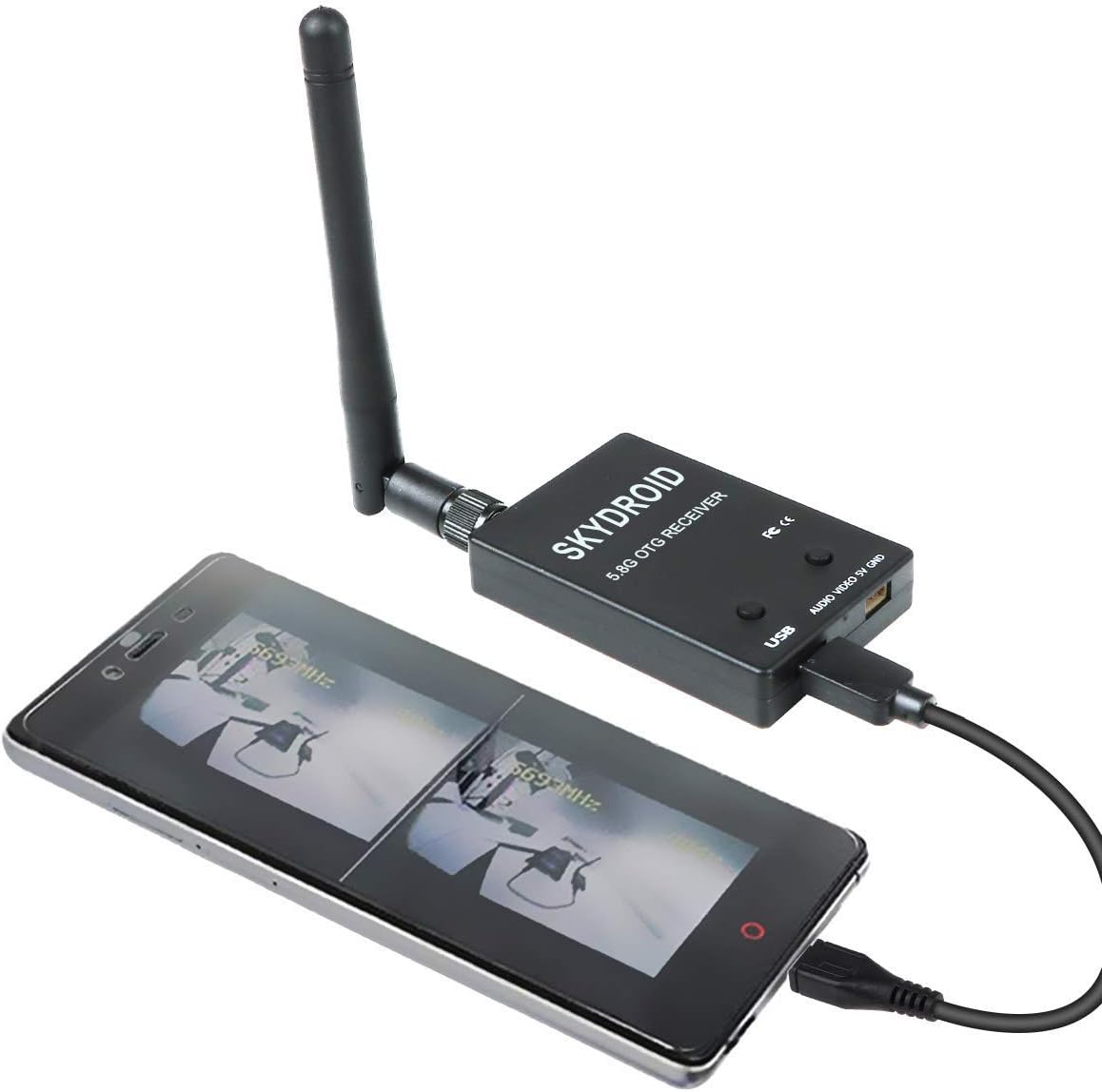
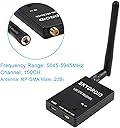
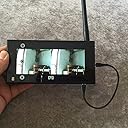
Product description Use with mobile phone Android phone installation APP download address; Use an OTG cable to connect directly to the receiver (no external power supply required); After the airborne image transmission device is turned on, press and hold the function key for 3 seconds on the image transmission to automatically search for the frequency point and automatically lock the frequency point with the strongest signal. How to use pc Connect the PC with a USB cable; (XP) open the camera, (WIN 7) install the AMCP camera software, (WIN 10) open the camera or MP ground station; After the airborne image transmission device is powered on, long press the function key (any key) for 3s on the image transmission to automatically search for the frequency point, and automatically lock the signal strong frequency point. FPV 5.8G 150CH OTG Receiver Packing List 1 * SKYDROID FPV Receiver 1 * Antenna 1 x Micro USB to Micro USB cable 1 x Micro USB to USB Type-C cable It is small in size, light in weight and easy to carry We transmit the signal to the mobile phone, and at the same time it can be transmitted to the screen. Powered by mobile phone, easy to operate and simple in structure! Add the "skydroid" app, simply connect and realize vr flight! Channel: 150CH Sweep Mod: Automatic Frequency Range: 5645~5945MHz Sensitivity: -90dBm Working Current: 200mA/5V Power Supply: 5V(by smart phone) Operating Temperature: -10~60℃ Resolution: 640 * 480 30fps VR DUAL SCREEN MODE Support single and dual screen switching. After switching to dual-screen mode, it can be used in conjunction with the VR box to experience the immersion of FPV LOW LATENCY FPV Receiver is 5.8G analog signal transmission, and the resolution on the mobile phone is 640*480. After the actual measurement, the overall delay does not exceed 100ms, which is basically imperceptible. SMALL and PORTABLE Small in size and easy to operate. You can put it in your pocket and carry it with you, providing a perfect visual feast anytime and anywhere. SCHEMATIC DIAGRAM of COMPONENTS USB data port : Connect your phone with the included data cable. AUDIO VIDEO 5V GND port: suitable for connecting to an external display. Two buttons on the UVC image transmission receiver: long press any button for 3 seconds, the receiver starts to automatically search for frequency, and the left and right can be fine-tuned separately. PAIR FREQUENCY Outdoor frequency pairing: open a distance of more than 30m from the transmitter to perform frequency sweeping and frequency pairing. Note: The frequency pairing needs to be taken to an outdoor open place. Remember not to pair the frequency indoors. The indoor transmitted signal is reflected by the wall, which will cause the actual detected frequency value to be high. APPLICABLE PHONE BRANDS AND MODELS Review: Excellent budget 5.8 GHz usb receiver! - This is my receiver for recording my FPV airplane flying videos, outputted by a generic all in one vtx+ camera on my powered sailplane. It outputs to an old return Toshiba Encore 2 8" windows 10 tablet via the included double sided male micro usb (not that there's anything wrong with that) and via the automatic search function finds the strongest channel frequency and locks on (provided user activates the vtx first, obviously) and does it's job well. It's reliable, easy to use, low power consumption, inexpensive (literally the cheapest one I could find at the time) & delivered super fast. I have no qualms or reservations about recommending this to anyone or buying another myself for any low end beginner FPV setup. Designed to output to an OTG capable cellphone,which I've also done with this successfully, but works great to a laptop, tablet or anything that can accept video in via usb. Also has a 3 pin input that I think is for either an osd or perhaps an alternative power source (otherwise powered by USB). Review: TUTORIAL: Works great on Windows laptop, no success with Android phone (yet) - I rolled the dice despite the spotty reviews: it absolutely works with an FPV camera, and seamlessly integrates with my Windows 10 laptop using the standard Camera app, however I tried 4-5 different USB camera apps on my (years old) Android phone and could not get my phone to recognize, however my old phone is also a culprit and I spent only 1 hour before moving to my laptop. -What made this difficult to troubleshoot at first is that I couldn't tell *which* piece of the chain was broken (My phone OS version? The camera app? The Receiver? The USB cable? The FPV transmitter?) until the live camera feed was up and running-- there's no status lights or insight into what's healthy or unhealthy. So I learned some things: - Even without an FPV camera turned on, a successful connection to your device will show *static* as well as a temporary text overlay (see my attached screenshot) with the current frequency and signal strength. This is important, because you can immediately tell if the issue is with your phone/computer connection, or an FPV tx/rx issue. I only discovered this after moving to my Windows 10 laptop. I never got this far on my Android phone and therefore was also troubleshooting my FPV setup and USB cable (a red herring). - So, don't worry about your FPV camera/live video until you see some static/my screenshot appear on your device-- this means you have a compatible app and good connection. I use the "Camera" app on Windows 10 and it instantly recognized this as a USB camera device, when plugged into a USB-C port on my laptop. It was shockingly easy compared to my Android experience. Importantly, my Android phone is an older "desk drawer" phone and could be the culprit for why none of the camera apps recognized the receiver as a USB camera. It sounds like some folks had luck with Android and a "coin toss" of which USB camera app on the Play Store worked for them. - Once you have the static feed up on your device and therefore know the receiver is functioning, now you can power on your FPV camera and get it transmitting. Once that's powered up, you can then long-press *either* of the two buttons on the receiver for three seconds, and you will see on your static feed the text overlay update as the receiver searches all frequencies for your FPV. You can do this even without the FPV camera powered on-- it won't connect but you'll see the frequency searching happening, as a sanity check that either button can be pressed to achieve the same function. - The receiver will automatically lock onto the transmitting frequency of your FPV camera, and display a signal strength. The live video feed should appear instantly. - While stuck troubleshooting on Android, for a while I was questioning whether the receiver was even powered on or functioning at all-- I learned that it will become slightly warm (as all RF equipment does) after several minutes, implying it's drawing power and not completely bricked. - To summarize: This product does work well on Windows 10 Camera app, but there may be some compatibility issues depending on the age of your Android device if you go that route. Importantly, you can also verify this receiver works on your device *even without purchasing an FPV camera*, because you can see that static feed and text overlay (my screenshot), proving a healthy connection before the RF link comes up.




| ASIN | B07Q5MPC8V |
| Audio Output Mode | / |
| Audio Output Type | Speakers |
| Best Sellers Rank | #218,576 in Electronics ( See Top 100 in Electronics ) #248 in Audio Component Receivers |
| Brand | Crazepony |
| Color | Black |
| Compatible Devices | Smartphone, Speaker |
| Connectivity Technology | USB |
| Connector Type | USB |
| Control Method | App |
| Controller Type | Android |
| Customer Reviews | 3.9 out of 5 stars 399 Reviews |
| Format | Digital |
| Global Trade Identification Number | 00192684492841 |
| Manufacturer | Q41515Y17I |
| Mfr Part Number | 1857503884165 |
| Other Special Features of the Product | Android Auto |
| Output Power | 50 Watts |
| Output Wattage | 200 Watts |
| Special Feature | Android Auto |
| Surround Sound Channel Configuration | 2 |
| UPC | 192684492841 |
| Video Encoding | AVI |
| Wattage | 1 watts |
J**L
Excellent budget 5.8 GHz usb receiver!
This is my receiver for recording my FPV airplane flying videos, outputted by a generic all in one vtx+ camera on my powered sailplane. It outputs to an old return Toshiba Encore 2 8" windows 10 tablet via the included double sided male micro usb (not that there's anything wrong with that) and via the automatic search function finds the strongest channel frequency and locks on (provided user activates the vtx first, obviously) and does it's job well. It's reliable, easy to use, low power consumption, inexpensive (literally the cheapest one I could find at the time) & delivered super fast. I have no qualms or reservations about recommending this to anyone or buying another myself for any low end beginner FPV setup. Designed to output to an OTG capable cellphone,which I've also done with this successfully, but works great to a laptop, tablet or anything that can accept video in via usb. Also has a 3 pin input that I think is for either an osd or perhaps an alternative power source (otherwise powered by USB).
A**R
TUTORIAL: Works great on Windows laptop, no success with Android phone (yet)
I rolled the dice despite the spotty reviews: it absolutely works with an FPV camera, and seamlessly integrates with my Windows 10 laptop using the standard Camera app, however I tried 4-5 different USB camera apps on my (years old) Android phone and could not get my phone to recognize, however my old phone is also a culprit and I spent only 1 hour before moving to my laptop. -What made this difficult to troubleshoot at first is that I couldn't tell *which* piece of the chain was broken (My phone OS version? The camera app? The Receiver? The USB cable? The FPV transmitter?) until the live camera feed was up and running-- there's no status lights or insight into what's healthy or unhealthy. So I learned some things: - Even without an FPV camera turned on, a successful connection to your device will show *static* as well as a temporary text overlay (see my attached screenshot) with the current frequency and signal strength. This is important, because you can immediately tell if the issue is with your phone/computer connection, or an FPV tx/rx issue. I only discovered this after moving to my Windows 10 laptop. I never got this far on my Android phone and therefore was also troubleshooting my FPV setup and USB cable (a red herring). - So, don't worry about your FPV camera/live video until you see some static/my screenshot appear on your device-- this means you have a compatible app and good connection. I use the "Camera" app on Windows 10 and it instantly recognized this as a USB camera device, when plugged into a USB-C port on my laptop. It was shockingly easy compared to my Android experience. Importantly, my Android phone is an older "desk drawer" phone and could be the culprit for why none of the camera apps recognized the receiver as a USB camera. It sounds like some folks had luck with Android and a "coin toss" of which USB camera app on the Play Store worked for them. - Once you have the static feed up on your device and therefore know the receiver is functioning, now you can power on your FPV camera and get it transmitting. Once that's powered up, you can then long-press *either* of the two buttons on the receiver for three seconds, and you will see on your static feed the text overlay update as the receiver searches all frequencies for your FPV. You can do this even without the FPV camera powered on-- it won't connect but you'll see the frequency searching happening, as a sanity check that either button can be pressed to achieve the same function. - The receiver will automatically lock onto the transmitting frequency of your FPV camera, and display a signal strength. The live video feed should appear instantly. - While stuck troubleshooting on Android, for a while I was questioning whether the receiver was even powered on or functioning at all-- I learned that it will become slightly warm (as all RF equipment does) after several minutes, implying it's drawing power and not completely bricked. - To summarize: This product does work well on Windows 10 Camera app, but there may be some compatibility issues depending on the age of your Android device if you go that route. Importantly, you can also verify this receiver works on your device *even without purchasing an FPV camera*, because you can see that static feed and text overlay (my screenshot), proving a healthy connection before the RF link comes up.
A**R
Worked once.
Buying this Skydroid is about the same as driving down the highway and throwing money out of the window. The Skydroid kind of worked once, in that it connected to the phone but it never connected to a camera. On the second attempt at using the Skydroid it did nothing. The Skydroid app has issues as well because it keeps crashing when started. There are many complaints on the web about the app crashing, which I wish I had known that before I purchased this Skydroid. Also, other FPV apps do not seem as if they work with the Skydroid OTG. I'm not sure if the problem is with the Skydroid, or if the problem is with the Skydroid app, but I gave up after trying the device on 2 different phones. I can only hope that there's a better product than this Skydroid out there.
E**Y
It does what it does Very well
Ive had this for a bit over a month and i can say that its really solid. The connection for short to medium range flights is impressive for being such a small and lot very costly device. It fits in my pocket its works phenomenally. Signal penetration is a little on the rough side once you go though several walls or obstacles but that's to be expected. Overall I'm very happy and would recommend!!
R**T
Reasonable cost secondary/backup display/recorder, not good enough for being a primary FPV display.
It works with my Galaxy S8+ and the App gotten from the web link provided on product page. I took 2 stars off for these minor issues: 1- Reception is not as good as I hoped, but that could be mainly due to the antenna provided which is I assume a dipole, my Chimera4 has circular on Vtx. (Will update if it is or not the issue) 2- Using a phone in a VR headset would be much easier if the unit had additional buttons on it that controlled Start/Stop video recording and taking pictures on the phone/device connected for displaying video. As is, I have to slide my phone out and use the controls displayed on the screen and slide it back in without accidentally activating a system menu. I say this because it has happened more than once. This also makes my recorded videos have dead time at start and ending wasting memory space. 3- No manual or instructions or web link for support at all with product, what's here on sellers page is it. While not difficult to operate with just 2 buttons for channel selection (+/-), it took a few minutes to figure out the instructions here were saying that pressing & holding for couple of seconds either button started scanning mode for signals that will show up as graphical strength bars for each channel which is useful. 4- It has two external connector ports - USB & 4 wire A/V 5Vpwr+-, but no cable for the last and no indication if the 5V power is input or output. (I'm guessing 'input', will update once determined which it is) 5- There is a noticable lag in the video you see, so keep in mind and keep drone speed in reason. Don't recommend for racing usage. The unit came in a neat little metal case for storage, a foldable short dipole antenna and 2 OTG USB cables, 1 being a 'C' type my phone uses. The displayed video can be switched between single image or dual "VR" split screen image modes for headset usage (recorded video is always a single image display, which is too bad if you wanted to play back video and view using headset,- you'll just get a headache trying to view it) It does for a reasonable price provide me with an additional/backup display/recorder that I badly needed. It's too bad that it lacks the features and hardware I mentioned, it's close to being a must have 5 star product, but falls short of being one. Not a bad product for it's cost if you need a secondary FPV display, just don't purchase it as your primary. Invest in something with diversity receivers for that or you could be sorry.
J**B
Works well enough, needs additional software for notebook/desktop
No instructions or directions and the android app constantly crashes on boot up of the app. I was about to toss it out when I decided to try USB on my notebook as a last resort. Googling around I found this guy's video on youtube who got me going: Gal Kremer "How To Do FPV On Your Pc - Eachine ROTG01 Review + PC Test" He recommends getting "Debut Video Capture Software" and, although I was skeptical it would work, it really did! It interprets it as a USB 2.0 Camera. Saved a heap of headache and time on my end. (stop by and give him a like for the help) Subtracted 2 stars because you're basically floundering around with no instructions but post software it does what it says it does. The two buttons are channel up and down and hold to scan.
N**7
Tons of fun for everyone
This little thing is great. I got it on a whim mostly because it boasted so many channels and yayyyyy it works with Android. I was nervous about getting it because my phone is an old Note 5 which has known issues with I/O, and I thought, "Well, if nothing else it should work with my PC." As it happens, it works with: My Note 5 (yay!) My Moverio BT-300 AR glasses (Did NOT see that coming, HUGE yay!) My army of Raspberry Pi 3b+ micros (Whaaaaat? Ok, that's cool! GUVCView works for sure) My Win 7 PC and Laptop Could not get it to work with my 12" Samsung tablet, but I haven't tried very hard yet either. It throws an error about connecting to the cam. Granted I haven't done any serious torture / range testing of it so I wouldn't know how it stands up against more expensive, "proper" FPV VTX units, but I have so far driven my DIY crawler bot "Dora" all over my house running 200mW on a WolfWhoop Q3 Pro using just the FPV feed and it's really solid, even with some walls in the way. I'm pretty new to 5.8GHz FPV but well and truly used to 1.2GHz FPV, and this looks very clean and crisp to me for CVBS video relay. Also, I really like that it has a breakout for connecting it like you would any other CVBS unit. Only one thing I do not like about it. Well, ok, we'll make that two, to justify four instead of five stars: 1) Even the little breakout connector only takes 5V. It would have been truly great and additionally useful if it could take a wider range of input voltage, you know, for those times when you wanna run it off a 3S pack or a 12V adapter or whatever. Not a deal breaker, really; you could just use a BEC or other voltage reg to get your five damned volts, lol. 2) I would have LOVED if it had either a connection point for channel switching or a rolling scan feature where when it loses signal it just resumes scanning. I really want to set up an outdoor poor man's FPV sniffer, and not having such a feature means either having to open it up and do surgery or do it the hard way by constantly manually scanning. I won't fault the product too much for this; it was intended to be taken to the field and used around known transmitters, not patrolling the neighborhood for random ones. Nevertheless, just imagine going FPV wardriving with something like that... ohhh good times would surely follow. Might even make some new FPV buddies. :-) So, summary: You need this. No, you NEED this. It's cheap enough, does its job well and is way more versatile than a typical AV output VTX. Besides, it works with a MOVERIO. If you're like me and have been wondering for years why you blew so very much money on one of those fickle, fickle devices just to fly a Mavic Pro, then this will show you that someone left the doorway open on your little prison after all and you just didn't know to look. That's a VERY cool thing. :-) If anything awful happens to this or I find out something great or terrible about it in future, I'll come back and post an update. For now, I'm very happy. Rick NR417
J**N
Works great with laptop, but no instructions
Works way better than I would of thought for the price. I’m using it with my windows laptop, so had to find a chord that was micro usb to normal usb (didn’t come with one like that - only chords for connecting to a smartphone). Once I was able to plug it in, it was just a matter of opening my webcam app, holding the button on the left of the receiver for 3-4 seconds to make it scan for the channel (camera) with the strongest reception and it automatically connects to it. I believe any webcam app on a PC will work, but I’m using a free version of Debut - it has a lot of useful options and settings. Using it with a cheap camera with built in antenna and getting over 400’ range line of site (could probably go further but haven’t needed to), and about half that when I go into a thick wooded area with my 1/16 crawler truck. Good times! 😁
B**D
Works as expected
We quickly tested this FPV video receiver. It works as expected. We did not notice any considerable latency.
Trustpilot
4 days ago
2 days ago