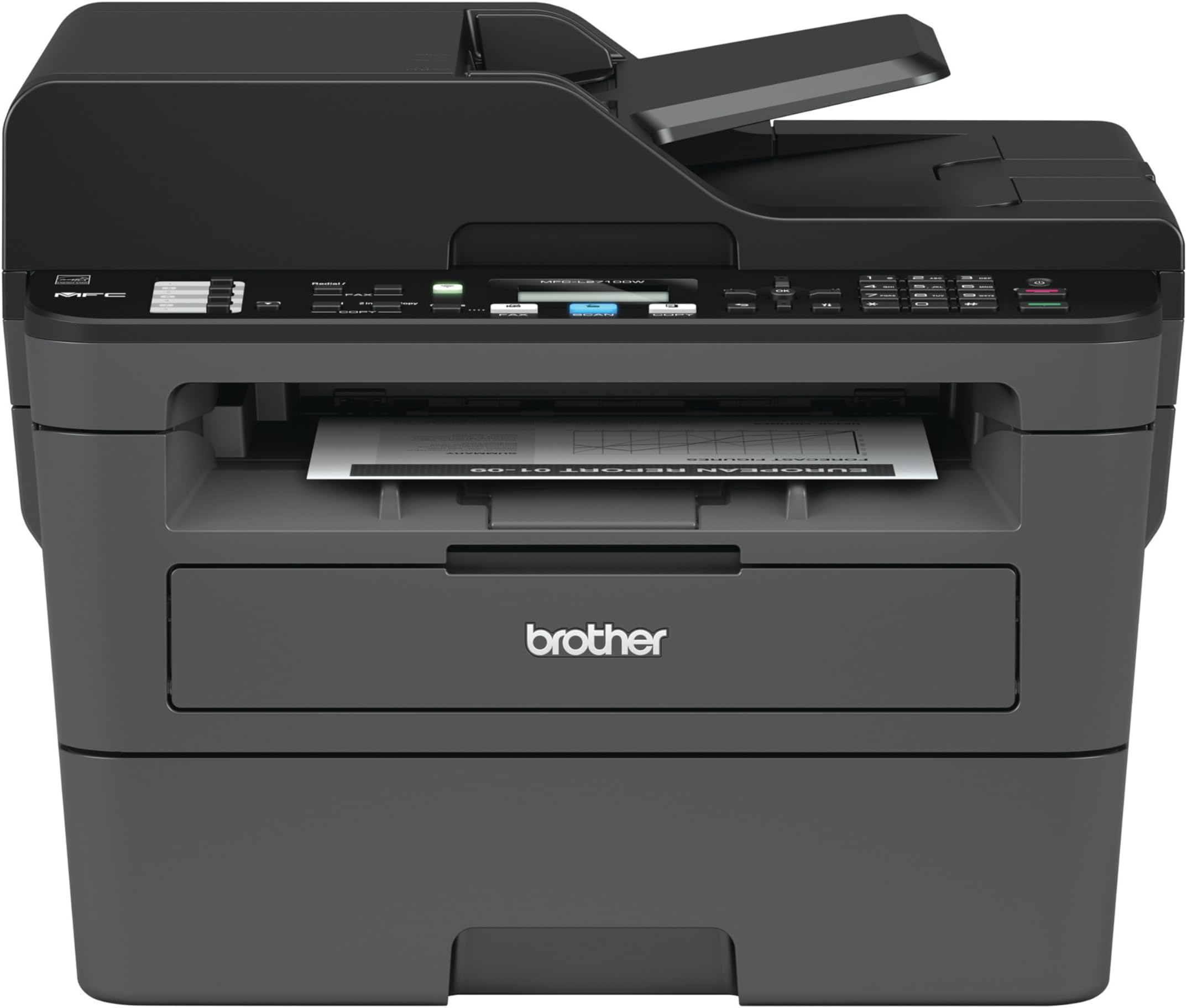
🖨️ Elevate your workspace with speed, smart tech & seamless connectivity!
The Brother MFCL2710DW is a monochrome laser all-in-one printer designed for home offices and small businesses. It delivers fast 32 ppm printing with sharp 2400 x 600 dpi resolution, supports wireless and wired networking, and features automatic duplex printing. With smart toner replenishment via Dash Replenishment and a 4-month Refresh subscription trial, it ensures uninterrupted productivity. This compact device also includes scanning, copying, and faxing capabilities, making it a versatile and reliable choice for professional environments.


| ASIN | B0763ZCH7K |
| Additional Printer Functions | All In One |
| B&W Pages per Minute | 32 ppm |
| Best Sellers Rank | #65,069 in Office Products ( See Top 100 in Office Products ) #79 in Laser Computer Printers |
| Brand | Brother |
| Built-In Media | Brother MFC-L2710DWStarter Toner Cartridge (700 pages)DR-730 Drum (12,000 pages)Quick Setup Guide and Basic User’s GuideInstallation CD-ROM (Mac OS available from download links)AC Power CordTelephone Line Cord |
| Color | Black/Grey |
| Color Pages per Minute | 32 ppm |
| Compatible Devices | Laptops, PC, Smartphones |
| Connectivity Technology | Wi-Fi, wired |
| Control Method | App |
| Controller Type | iOS |
| Customer Reviews | 4.4 out of 5 stars 8,789 Reviews |
| Display Type | LCD |
| Dual-sided printing | Yes |
| Duplex | Automatic |
| Global Trade Identification Number | 00012502649694, 00012502654223, 00012502771128 |
| Hardware Interface | USB |
| Ink Color | [BLACK] |
| Item Dimensions D x W x H | 15.7"D x 16.1"W x 12.5"H |
| Item Type Name | Compact Laser All-in-One with Duplex Printing and Wireless Networking For Home or Small Office (Replacement Model for: MFCL2700DW) |
| Item Weight | 26 Pounds |
| Manufacturer | Brother Printer |
| Maximum Copies Per Run | 9999 |
| Maximum Copy Resolution Black and White | 2400 x 600 dpi |
| Maximum Copy Speed Black and White | 30 ppm |
| Maximum Media Size | 8.5 x 14 inch |
| Maximum Print Resolution Black and White | 2400 x 600 dpi |
| Maximum Sheet Capacity | 250 |
| Model Name | MFCL2710DW |
| Model Number | MFCL2710DW |
| Model Series | MFCL2700DW |
| Number of Licenses | 1 |
| Number of Trays | 1 |
| Other Special Features of the Product | Auto Document Feeder, Auto-Duplex, Display Screen, Network-Ready |
| Output sheet capacity | 250 |
| Paper Size | 8.5 x 14 |
| Power Consumption | 440 Watts |
| Print media | Card stock, Envelopes, Paper (plain) |
| Printer Connectivity Type | Wi-Fi, wired |
| Printer Output Type | Monochrome |
| Printer Type | Laser |
| Printing Technology | Laser |
| Processor Count | 1 |
| Resolution | 2400 x 600 |
| Scanner Type | Document |
| Special Feature | Auto Document Feeder , Auto-Duplex , Display Screen, Network-Ready |
| Specific Uses For Product | Gaming |
| Total Usb Ports | 1 |
| UPC | 012502638261 012502654223 012502771128 012502649694 012502674580 012502637325 012502655473 |
| Unit Count | 1.0 Count |
| Warranty Description | manufacturer |
| Warranty Type | limited warranty |
| Wattage | 440 watts |
M**9
It Works Pretty Darn Good so Far
I haven't had this printer for too long, but so far, it works pretty good. I have suffered at the hands of cheap inkjet printers from HP for years and was sick and tired of paying ridiculous prices for the stupid tiny ink cartridges that were prone to dry out and quit working if you didn't use them for months. This is my first laser printer, and I am pretty happy with it. I see a lot of people complain about toner issues and connectivity problems with these printers, and after my experience with this one, I can see how a lot of people might have a problem setting this up if they are not very tech savvy. Luckily, I am a computer wiz, so I was able to overcome most of the technical roadblocks in a timely manner. Below is quick run-down for some of the issues people might have with this type of printer and how to overcome them. The first issue someone might have right off the bat is getting it to connect to their network. The DHCP needs to be enabled and have enough addresses available to accommodate another device. Most are set up this way, but not all routers people have for their home networks are created equal, and some come set up from the factory with settings that may limit the ability for peripherals, like printers, to connect to them properly. This is especially true with equipment that is purchased used. Some people, like me :), have their router locked down so tight, that nothing can connect to it unless they want it to. There is a setting in most routers with regard to either "Set AP Isolated" or "WLAN Partition" or some other jargon, but they all serve the same purpose. That is to disable network equipment connected to the router from being able to talk to each other. This is great if you want added security on your network, but If these settings are enabled on your router, then you will never be able to print to this printer from any device connected to your network unless you are connected directly by a cable from the computer to the printer. It's a give and a take. You give up added security, but hey, at least now your can print, right? The next mistake most people are going to make it to try to install the printer directly from Windows from the "Printers & Scanners" or from the device manager. Windows has default drivers that work with the printer and will find and install it, but you are shooting yourself in the foot right from the get-go when you do this. The reason being is that you will never be able to get to the settings and preferences that fully manage this printer, and you will not be able to find the setting that allows you to bypass the setting that makes the printer stop printing when the toner gets low. Many reviews on here complain about the toner-stop-printing issue, so this is how you fix it....Go to the Brother website and download the latest drivers for your printer and install all of the software on your computer. DO NOT use the CD that comes with the printer. It could have been sitting in a warehouse for 6 months or a year for all you know, and the drivers are probably not up to snuff. When the software installation reaches the point where you have to opportunity to update all of the software and firmware from the printer, do it. Do not skip that portion of the installation process. There is a sticker on the back of your printer with the "password" that it will ask for when you choose to remotely configure it, and within those settings, you have the wonderful option of setting the "Toner-Low" setting to "Continue" instead of "Stop". That way, you will never have to use those tricks or sequences to bypass when the printer stops printing when you still have oodles of toner left in the cartridge. Another issue that this solves is the fact that, without the software installed, you would never be able to scan documents from the scanner portion of your all-in-one printer and send them to your computer. You would be stuck with only basic print capability. I highly recommended that people also go through their settings for the printer directly at the printer itself and disable the "Auto Power Off" function altogether on the printer. It does not gobble up a million volts of electricity all the time when it's not being used. The reason I suggest this is because it will disconnect from the network and become "unavailable" for printing until you drag you carcass over to the printer and turn it back on. With the function disabled, it is always connected to your network 24-7 and will wake itself up from "sleep' and start printing a lot faster then if you had to go and turn it on every time when you haven't used it in awhile. I will update this review after a few months or add more info if I find any issues that I had to overcome. All-in-all, this is a nice little device that can print, fax, scan and copy for a pretty good price. So far, I am really enjoying the benefits of a laser printer over the junky inkjets that I have been using for so long. If you are like me and only print some stuff every now and then and are fed up with clunky inkjets, then you can't go wrong with a laser printer like this one.
M**Y
A nice, well-priced small business / home office laser!
Nice price for a faster laser printer and an upgrade from my 2012 ink jet. I used the online driver installation instructions which took about 15 minutes but were easy to follow. Wireless connection set up was no problem at all. I then followed the set up instructions for ensuring firmware was up to date and that went fine too. No landline so I opted for "do not install" for the fax installation portion, which caused the set-up to freeze. Even though I was unable to select "next" and "finish" everything seemed to install correctly and it's working. Hopefully the printer will continue to be as trouble free as the installation was. (I have PC and Windows 10). I have a home business so I was ready for a laser even though my 2012 Epson inkjet was still working fine. This one is better for bigger print jobs. The print is clean and no issues so far. Good price on a nice little (but not compact at all) printer.
K**R
Nice, crisp
I got the printer today and followed the instructions on the quick guide; take it out of the box, take the tape off, put in the ink cartridge, put in some paper, plug in the ethernet cable, turn it on. Took about 5 minutes. I went to printers on my settings menu on my windows 10 dell and clicked on printers. It asked if I wanted to add a printer. I said yes. It immediately recognized the Brother MFC L2710 DW and did whatever it needed to do to recognize it. I clicked on a word file I had open and selected print. It printed. Nice, crisp, clear, fast, easy. Done. By the way, the printer paper I bought was office depot copy & print, 6.59 for 500 sheets. Works like a dream in the printer. New toner cartridges are 41 dollars vs. 75 or 80 for some of the other ones. So this is a good deal. I am a low volume printer and do less than a hundred pages a month, sometimes a lot less. Anyway, it looks like this is going to be a good purchase. Amazon was competitive on price so I bought from them. Shipped in 2 days. All good.
W**A
The perfect printer for a small business or home office.
I was in need of a printer that could scan, print quickly, not cost a fortune to replace, and was small. The Brother monochrome printer is the exact product I was looking for. I was like most of you. I was reading reviews on different printers deciding which would be the best fit for me. I looked at Canon, Epson, Brother, and each printer had their own pros and cons. Some could print beautiful photos but not scan images. Some could scan images and print photos, but the ink was super expensive. Others could do it all but the size of the machine was huge and the price exorbitant. Basically, choosing a printer was harder than setting up the one I ordered. When selecting a printer it is important to research how much this machine will cost you in the long run. If you don't mind spending 60 dollars on ink and refilling it every 400 prints, that's on you. But me? I hate spending money on ink. I hate having to refill all the time when I haven't printed that much. I also hated that the ink dries out if you don't use it often enough. Therefore, I realized I needed a LaserJet printer. Toner was the answer I was looking for. But when you get a LaserJet printer, the cost goes up and you tend to lose the ability to print in color. Did I need to print in color? No. Most of the time I'm printing out tickets, labels, documents, and postage labels. I didn't need color. So a color LaserJet was out. Short story long, this brother printer was the solution I was looking for. So what are the pros and cons? PROS: - Prints quickly. - Can print significantly more pages than an inkjet without needing a refill. - Scans at a great quality. - Easy to setup for WiFi printing. - Small size, easy to place on top of a shelf or countertop. (Check measurements first!!! It is not the smallest printer but it is small) - Can fax if I ever decided to get a landline again. - Has the option to automatically order toner when your supplies run low. Hi yield can do a thousand plus pages without needing replacement. - LCD display is responsive and easy to use. - Has prompts to guide you when printing address labels. E.G. Open the manual feed tray and the rear tray. Place labels in the tray. CONS: - Cannot print in color. - Does not print graphics well. It's serviceable but definitely not intended for photos. - The scanner software used to scan in your documents is extremely barebones. Canon has a much better utility that sorts your scans into folders by date. Brother does not. You have to manually create folders with dates in them. - If you don't plug the printer into the USB, setting up the WiFi becomes harder. You have to manually select your network on the printer LCD display and enter the password using the arrow keys. It's time consuming and annoying. Could go significantly faster if you plug in the USB. - In order for users to use the scan feature, they need to install the brother software the comes on a CD onto their computer. Annoying and inconvenient. So if you need a printer that can do all your basic office tasks in black and white, I think the Brother monochrome printer would give you the best bang for your buck. This is definitely the type of printer that would be useful for someone who prints a lot of documents, scans sensitive information like ID's or social security cards, and prints postage or mailing labels. If the utility that came with it had been more robust like Canon's, I would have given this printer a 5. But because it doesn't, 4 it is.
N**D
Exactly what I was looking for
This printer is exactly what I was looking for. It was delivered a few hours ago, and I had it all set up in under 20 minutes. I set up the wifi manually because I was too lazy to find a USB cord, but it was very easy to do anyway. All I had to do was go to the network settings in the printer's menu and enter my passkey. I downloaded the drivers off of the website, but there is also an included cd if needed. I've had to set up a few printers in the last few years, all were inkjets, and this Brother laser printer was by far the easiest to get up and running. It is so nice to have a working printer again. Bye-bye inkjet printers! Update: I am still really happy with this printer, so I'm leaving my 5-star rating, but I have found one minor issue. I currently can't print from my phone. I believe the issue is that I have a broadband modem that is a bit quirky and it randomly selects which band it will let me connect to, so I keep getting a message that my printer isn't on the same network even though it is. I can wirelessly print from my computer, just not my phone. If I could figure out how to get both my phone and the printer on the same band, it would work. Update 2: I am very impressed with the "starter" toner cartridge that came in the box. I have printed a lot and it still says that my toner is full. With the inkjet printers I had in the past, I would already be needing to buy more ink by now. I am so happy with this purchase. So it's been 11 months of printing and it still says I have just over half of the starter toner left. Maybe I should've waited on ordering that extra toner I thought I would need right away. I hope it won't be bad by the time I get around to needing it. Pro Tip: If you're having trouble installing the software and can't figure out why it won't work, make sure you don't have a VPN on.
K**S
Simple, reliable, budget-priced unit
I have used several “all-in-one” units in my small business over the years. I’ve been using this for a few months and I can say that I’m very happy with this one. It’s nothing special but that’s fine cause it’s meant to be your basic, entry-level item. But don’t think that means is lacks quality. It has reliable performance and easy set up. To set this up, I put in the drum & toner, plugged in the power, typed in the WiFi password and the unit was ready to go. My iOS and Android devices found it automatically. I had to use the IP address to set it up on one of the Windows computers but the other one found it and set it up automatically. I do also use an old-fashioned phone line to fax. There’s a plug in on the unit for the phone line. I just plugged it in and it was able to work instantly. You can go set up your business name and header/footers, but it will send and receive faxes without it. It has very boring specifications: It does what it says it will do. It’s a standard size multi-function unit. It’s about as heavy as the other ones I’ve had. It holds an average amount of paper (looks like 500 sheets). The print quality is good, especially if you use the brand name Brother toner. It warms up quickly and prints pretty quietly. Much faster and less noisy than the one it replaced, but I suppose that’s to be expected since that one was pretty old. Overall this is a solid, budget option, multi function unit. If you want a basic, black and white printer/copier/scanner (and maybe fax?) that will work reliably, this is it. Simple to set up, simple to use.
C**Y
Better than my $750 HP LaserJet
The Brother MFC-2710DW laser printer is very easy to set up (from unboxing to first print-out from my PC, it took less than 5 minutes), has all the features you need, and operates reliably. Scanning is smooth and fast, pages print quickly and look very sharp, and faxing is very easy from the 2710DW. As far as 3rd-party toners - more companies are starting to include the IC chips, so unlike what other reviewers have posted, you CAN use less expensive 3rd party toners, as long as they have the IC chip and support the 2710DW. Only downside of the fax is that 4 rings is the maximum number of rings you can configure before it picks up to receive a fax (my answering machine picks up at 4 rings as well). You can work around this by simply having it answer faxes in manual or tel/fax mode, but it's odd that 4 is the maximum number of rings. Hopefully Brother will update their software to allow for more rings before the fax answers. First and foremost, whether you're using a Mac or PC, download the software package for the printer from Brother's website. The software package will install all of the necessary drivers, utils, and apps that you need to fully utilize the scan and fax features. It's also much easier to remotely configure the printer through your web browser or using the Remote software within the Brother utils package. Secondly, register the printer for Google Cloud print - just open up Google Chrome and type "chrome://devices/" in Chrome's URL address bar. Sign into your Gmail account and register the printer. Now you can print from any location with an internet connection. The 2710DW is fully supported with Google Cloud Print, despite the model not being listed on Google's list of supported devices (the 2710DW is simply a newer/updated 2700DW). I had a $750 HP LaserJet which crapped out after just a couple of years of light usage. It was an all-in-one, multifunction printer and not NEARLY as nice as this one. For $100 the Brother is a much better value...hopefully it lasts beyond a couple of years...
B**S
Don't buy if you want to print envelopes easily
Generally, I wait a while to write a review. I bought and installed this machine today, because I was tired of buying ink I didn't use for my antiquated HP Deskjet, and envelope alignment was always something of a problem for it. This printer may or may not print envelopes okay, I don't know yet, but it's clear you have to virtually stand on your head to do it. First, you have to either turn the machine totally around to open the backside, reach in and pull two levers down, then turn the machine around again and feed the envelope into a compartment on the front side and feed it in manually, then turn the machine around again to (hopefully) get the finished product, or you have to place the printer somewhere where you do have ready access to both sides. Fat chance of that in the average home or office. Besides this, I found the fax option a major hassle, because it appears you can't turn it off when the machine is on even when you've not got a phone line connected. And, Installing the software crashed my Win 8.1 computer three times, closing all open programs, and restarting, beginning with the installation program, which froze. I'm not sure what the hitch was, perhaps my firewall, which required me to okay a dozen executables several times over before it seemed we were all done. But I never have any such problems, even with Windows Update. Like a lot of stuff these days it also installs a massive amount of what I consider bloatware, which, of course, demands be run 24/7. The HP was the same. I turned as much of it off as I dared. Frankly, I'm astonished that anyone gave this machine a glowing review. I figure the competition must be awful. The only saving grace in my mind is that it cost little more than a year or two of HP ink. I'm told toner doesn't dry up like ink, so at the rate I print and copy stuff I'll probably be looking for a new machine instead of ever purchasing a new toner cartridge. These lasers, incidentally, don't do pictures at all well, so there's little point in getting a color model, unless you need simple color printing. BTW there, are 632 pages to the downloadable manual :) They, of course, didn't bother printing one. Worse than my digital camera. If anyone thought the digital revolution would make life easier, or save the planet, they were certainly overly optimistic.
Trustpilot
3 days ago
2 weeks ago