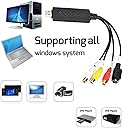
🎥 Digitize your past, dominate your digital future!
The REDGO Video Audio VHS VCR USB Capture Card is a plug-and-play device that converts analog VHS, Hi8, and VCR tapes into digital files at 720x480 resolution. Compatible with NTSC and PAL formats and all major Windows systems, it supports multiple DVD formats and works seamlessly with popular free editing software. Lightweight and easy to use, it’s the perfect tool for millennials eager to preserve and share their analog memories in a digital world.
| ASIN | B01E5ITE2W |
| Best Sellers Rank | #400 in Internal TV Tuner & Video Capture Cards |
| Brand | REDGO |
| Color | black |
| Customer Reviews | 3.9 3.9 out of 5 stars (2,160) |
| Date First Available | April 12, 2016 |
| Is Discontinued By Manufacturer | No |
| Item Dimensions LxWxH | 7.75 x 7 x 1.75 inches |
| Item Weight | 3.84 ounces |
| Item model number | LYSB01E5ITE2W-ELECTRNCS |
| Manufacturer | REDGO |
| Operating System | Windows 10, Windows 7, Windows 8, Windows XP |
| Product Dimensions | 7.75 x 7 x 1.75 inches |
| Series | LYSB01E5ITE2W-ELECTRNCS |
C**R
Simply amazing little tool - but expect some effort to configure your computer
This little device works incredibly well! I have basically nothing to say about the device itself - it does exactly what it is supposed to do: get your VCR's signal into your computer, with no discernable signal loss. It seems that any issues people have do not involve the device, but the other factors, so that is all I will address here. One thing I have never seen discussed anywhere else is to be aware that your VCR machine itself is surely the biggest factor in quality. I switched from our primary (older) VCR to a combo device we had bought after VHS tapes were already a thing of the past - so it had basically never been used. The quality improvement was remarkable. Nothing else I did even approached that difference. That said, VCRs are remarkably low-fi, so do not expect much in the way of quality (compared to the HD we are conditioned to expect these days). In line with several recommendations here, I never even bothered to try the software that came with this device. Instead, I used three free, open-source programs: OBS Studio (for the video capture), Avidemux (for editing the resulting videos - mainly trimming the start/stop points), and Audacity (for my mainly fruitless efforts at noise reduction). These three programs are simply remarkable - kudos to the developers of each. But they are also advanced, with more options than you will want. So here are my tips for each program: OBS Studio: I did a lot of research to try to find the optimal settings for recording from VHS, and there are competing opinions all over the place. Don't bother trying to resolve this dispute. Instead, just right click on the video when you can see it in OBS Studio, and choose "Resize output (source size)" - this tells you that "The base and output resolutions will be resized to the size of the current source" which is really what you want. Mine ended up at 720x480, which might be overkill as far as file sizes for quality tradeoff, but really works just fine (a couple GB per hour). The other not obvious issue I had was activating the sound. Here is how to turn on the sound monitoring and recording: Audio Mixer, settings wheel icon, Advanced Audio Properties, switch to Monitor and Output. Avidemux: First, be patient when you open a large file in Avidemux: it takes a remarkably long time to load a long video, much of the time with no indication that anything is happening. Walk away from your computer and do something else while you wait. Second, it took me a while to figure out the easy way to find the permitted cut points on a video. Video compression works basically by noting the parts of the video that have not changed from the previous frame, and then not storing those parts. But the frames have to be connected to each other for this to work. Which means you can't just cut at any old frame (unless you re-encode the resulting video, losing a bit of quality). Every few seconds or so, the video compression resets, so you can cut at that point without having to re-encode. Finding those reset points can be difficult. Fortunately, Avidemux has a trick I eventually found: use the arrow-up and arrow-down keys to move between the frames you are allowed to cut on without requiring re-compression (I frames). The rest is easier. Select A (start delete point) and B (end delete point) and press delete. But be warned - the delete is instantaneous and invisible. You will think nothing happened, until you play it and see the edit you just made. I also had a hard time choosing between the MKV and the MP4 file output types, and in the end decided to output to both (because my recordings were effectively archival stuff, and who knows what format will still be accessible 20 years from now?). Saving the video is really simple: choose your output type, and then File, Save. You can if you want also find some other software to encode your results into DVD format, with some quality loss due to the extra compression step. I did not do this, so I have no suggestions in that regard. A final tip: to prevent quality loss, I tried to avoid multiple opens and saves. So open the video in Avidemux, and then do not close or save it until ALL edits (including audio editing if need be) is complete. Audacity: This program is only if you want to attempt noise reduction (a couple of my VHS tapes had remarkably bad video camera motor noise). First, you will want to export the audio from Avidemux: switch to audio output PCM (.wav, because Audacity can import .wav, and it is lossless), and then Audio, Save Audio, and then switch audio output back to Copy. Then you can import this .wav file into Audacity and try using the noise reduction feature. I ended up exporting my Audacity results as high quality MP3 (if I remember right, trying to import a .wav file back into Avidemux created problems for the video MP4 output), and then adding those results as a second track to the Avidemux video. Since my videos were basically archival stuff, I didn't want to lose the original sound, even if it was painful to listen to. When the result is played, in many players the user can switch between the two tracks, like you would switch between the language tracks in a movie. In other players, they are stuck with the original track.
A**J
Does exactly what it says, very easy to use
I bought this specifically to digitize old 8mm tapes, and I'm impressed. Pros: + It's Plug N' Play, as advertised. It shows up as an audio and video input device which can be captured on any decent capture software. + In relation to the above point, it comes with capture software. The install is a bit of a pain if you don't have a disk tray on your device, but I happen to. There's an annoyingly long product key, and the software looks a bit sketchy, but it works fine once it's installed. Still, if you have something else, there's no particular reason to use the provided software. + It's a lot cheaper than some other options for digitizing composite stuff. There are dedicated units for this type of work, but they tend to retail for much higher than this. Cons: - The unit's casing is bulky, so it won't fit on your USB hub unless you use the provided extension cable. The cable works just fine, so it's not an issue, just another step to be aware of. Conclusions: It works. There's not a ton to say about it other than that. Like I said, it's cheap and easy to use. I've done about thirty tapes so far and haven't seen any issues, so I'd say it's robust. I'd recommend it for sure, and I'd definitely use it again if I need to digitize anything else.
V**S
Great Value
I've purchased several similar products in the past and none have worked at all except this one. So kudos to this REDGO capture device. I am using a Windows 7 PC and the drivers automatically installed within 10 seconds after I plugged this capture device in. You will know that the drivers are installed when a pop-up message tells you that the device is ready to use. You can confirm this by looking for the devices and printers for your PC and a Windows Camera device will appear on the list. On the other hand, the software that came with the device couldn't fully launch. Despite trying to re-load the software CD 3 times, it crashed every time. Admittedly, this may not happen to most users because they will likely use a newer operating system (later than Windows 7). In any case, if the software installation fails for you, you can search on-line for a freeware version of AVS Editor. The software also allows you to adjust basic video parameters like video resolution, contrast, brightness, and sharpness. To capture, you need to open the AVS Editor software, press play on your VCR or other device that is feeding the REDGO, and press the "Capture" button on the software screen. When you're done capturing you simply press "Stop Capture". You'll find a AVI format file in the designated folder in your PC directory. Of course, you can contact REDGO and I'm sure they will find a way to get the original software to work for you. If your aim is to simply transfer video from an analog source, the REDGO gets it done. Results may look softer than the capture source but my results are based on the third-party software I used. You results may be better. In any case, the price for the whole package is so low that you really can't nitpick. If you intend to archive your old tapes with the intention of visually preserving as much of the quality of the original analog source as possible, you will need to go through a few hoops. I did this by using a miniDV deck or camcorder that has an S-Video input to record from the original source then playing the miniDV recording back through a firewire (IEEE-1394) connection between the camcorder and the PC. This, of course, takes twice the time to get the footage onto the PC's hard drive. But the results are much better. This is all the more obvious when you happen to have higher resolution sources like S-VHS recordings, laserdiscs, Hi-8, or ED Beta. Depending on the quality of the source, the results can approach or rival DVD quality. Of course, not many people readily have access to miniDV camcorders or recorders that have video inputs. Getting a hold of one, obtaining necessary PC or MAC drivers may be an issue, and of course you'll need editing software. This alternative will cost you a lot more than just purchasing this REDGO capture device. So for most consumers REDGO will be a better option. For less than 20 clams I can't really complain. Unless you're a nitpicker, you'll like it. Other more elaborate USB capture devices are on the market but they are much more expensive so at the price, this device is a winner.
T**U
I used a lots of essy cap, but all are bed response. Don't buy any essy cap
T**S
I use these to capture live video to a laptop and this is one of the lowest priced capture devices that works reliably with the Python based program I am using. I have not tested the S-Video capture as the program I use does not provide input selection, but the composite input works well.
G**T
Ne fonctionne pas en S-VHS. C'etait la seule raison pour lequel je l'ai acheté
S**R
I was using it to transfer old camera videos to digital and worked great for a while, but randomly broke and now the video is choppy and there's no audio.
Trustpilot
2 weeks ago
3 days ago