🚀 Elevate your workspace—connect more, do more, be more.
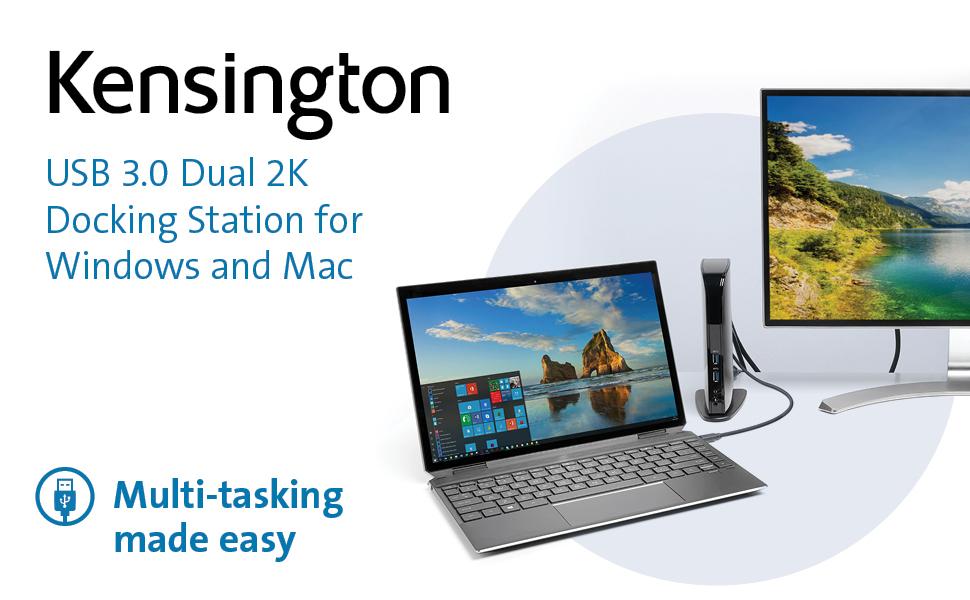
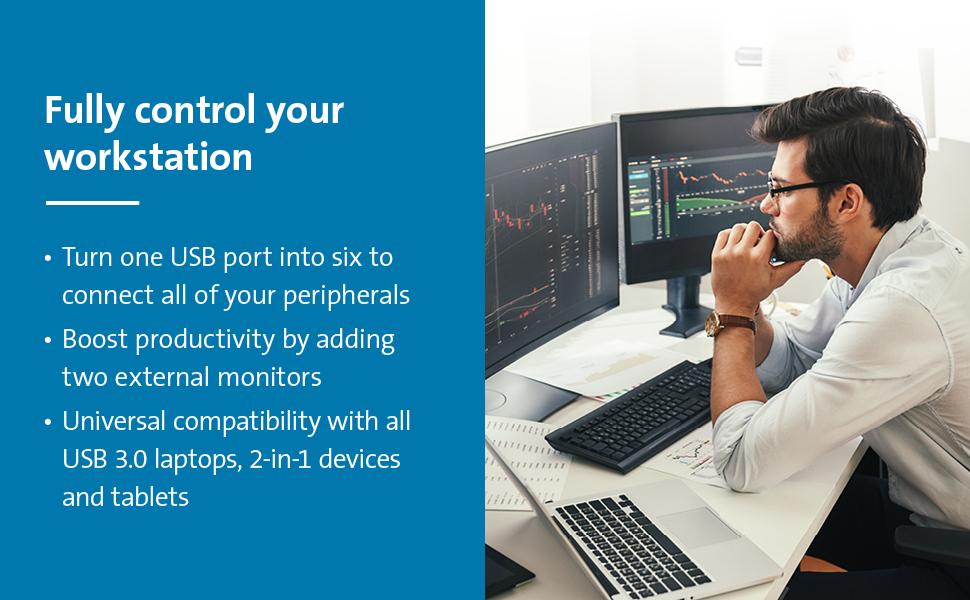
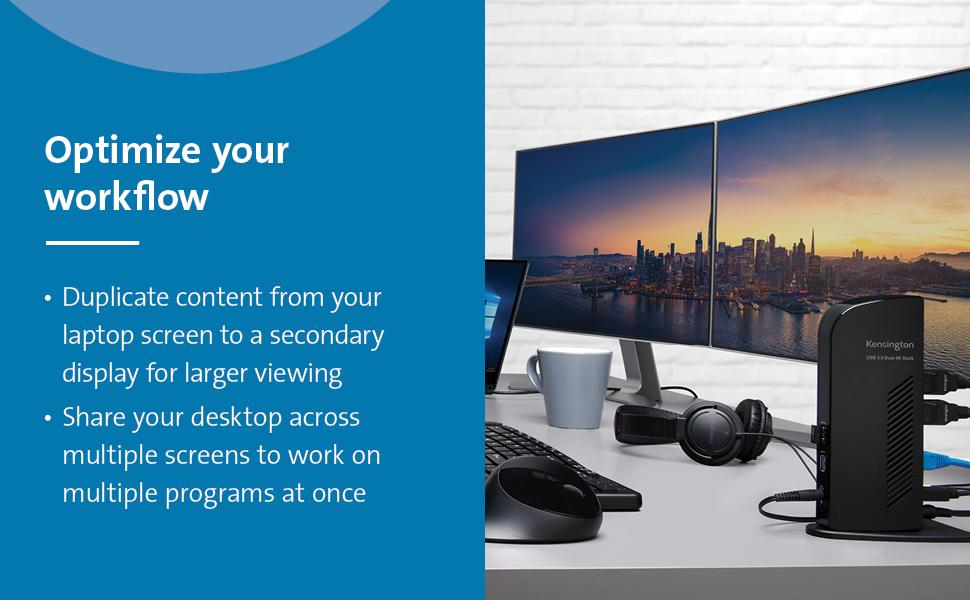
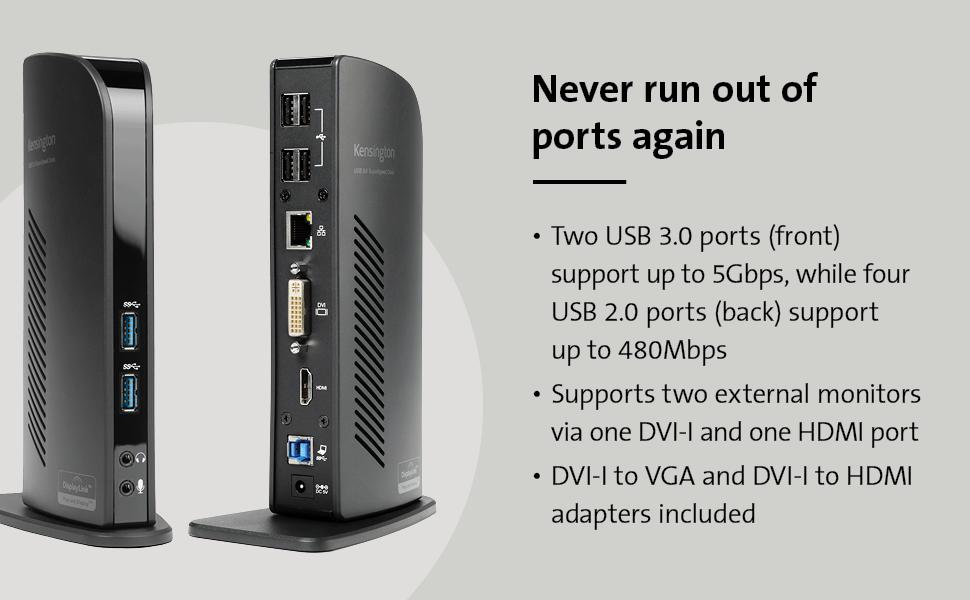
The Kensington USB 3.0 Dual Display Docking Station (K33972US) is a versatile, plug-and-play hub that expands a single USB-A port into 10 total ports, including dual video outputs supporting up to 2560x1600 resolution. Compatible with MacBooks, Surface devices, and Windows laptops (with USB-C adapter), it features SuperSpeed USB 3.0 data transfer, Gigabit Ethernet, and audio jacks, making it the ultimate productivity booster for professionals craving seamless multi-device connectivity.


| ASIN | B009F7E730 |
| Best Sellers Rank | #30,802 in Electronics ( See Top 100 in Electronics ) #517 in Laptop Docking Stations |
| Brand | Kensington |
| Built-In Media | Docking station, power cord, two display adapters |
| Color | Black |
| Compatible Devices | MacBooks, Surface Book 1/2/3, Surface Laptop 1/2/3, Surface Pro 4/5/6/7/8, Windows laptops |
| Customer Reviews | 4.5 out of 5 stars 1,321 Reviews |
| Global Trade Identification Number | 00085896339724 |
| Hardware Interface | USB |
| Item Dimensions L x W x H | 10"L x 7"W x 3"H |
| Item Type Name | Kensington USB 3.0 Dual Display Docking Station for Windows, Mac OS, Surface Pro & Surface Laptop (K33972US) |
| Item Weight | 12.8 ounces |
| Manufacturer | Kensington |
| Number of Ports | 10 |
| Product Dimensions | 10"L x 7"W x 3"H |
| Total Number of HDMI Ports | 1 |
| Total USB Ports | 6 |
| Total Usb Ports | 6 |
| UPC | 085896339724 |
| Unit Count | 1.0 Count |
| Warranty Description | 2 year |
| Wattage | 1 |
C**1
This is an awesome USB 3.0 type A docking station
I originally purchased a USB-C dock, thinking I could attach it to my new HP Windows 11 laptop USB-C port. I have two external monitors, one HDMI and the other Display Port (or VGA), as well as 4 or 5 USB devices. Well, I connected everything to that USB-C doc, and the USB devices worked - but not the monitors. After some research, I discovered my HP 15-ef2033dx laptop (purchased at a great Black Friday price), does not support external monitors through the USB-C. Duh - I should have paid more attention. So, I found this Kensington Dock on Amazon, read the description carefully and watched the videos produced by Kensington. Convinced myself that this bad boy is for me. Got it yesterday, hooked everything up, and voila - my old external monitors work like a champ. And, because the Kensington dock has its own power supply, I can leave my laptop lid closed - I have no need for 3 displays - and the 2 external monitors work great in this mode. When I'm done working, I just turn off the monitors, leave the laptop in sleep mode, and then wake it up by simply activating with the mouse or keyboard. The provided DVI to VGA adapter works perfectly, with a VGA connection to my old Dell monitor (at least 8 years old). And - the dock also has an audio output port, so I can connect my external speakers also completely to the Dock - the audio jack as well as USB for the power. (The dock also has an audio input port if you want to connect a microphone.) I could not be happier. If you have a laptop with a USB-C which doesn't support external monitors, or a laptop with USB3.0 type A only, this is for you.
A**R
I was super hesitant about purchasing the product because I had tried ...
Reason for purchase: I have an HP Envy laptop that only has one video out (HDMI) but I have two monitors and I was in the process of replacing my desktop computer with the ENVY and I wanted the laptop to be able to make use of both of my monitors. First impression: I was super hesitant about purchasing the product because I had tried an IOGear (or something like that) USB display module before that, too, used DisplayLink. I had soooo many problems with it...well actually just like one or two but they were happening frequently and in my mind I came to associate the problems with DisplayLink, not the module. So when I saw that this docking station used DisplayLink as well I was nervous but the reviews were so positive that I figured the previous problems might have been with the module itself. My first impression: nice looking piece, looks kinda like a router, solid packaging though it was difficult to remove initially. Setup: I literally just plugged my monitors into the back of the docking station as well as two ext. hdds and the speakers. I then plugged the docking station into a surge protector and connected it to my laptop via the provided usb. For those of you who are confused as I was at first, all of the video goes through the usb cable, so you can have two external displays without plugging anything into your laptop's video output. My laptop recognized the docking station and a window popped up where I could install the drivers that I wanted (one for audio, one for video, etc). The set-up was seamless and it blew me away. As soon as the drivers were installed the monitors came to life, I don't even think it required a restart (though it may have but I don't think it did). Overall Experience: It's been pretty awesome, I've noticed little to no lag at all when dragging stuff between monitors, no delay or sync issues with audio, the hdds are fast as ever, I'm blown away really. I've only really noticed two semi-issues--playing two separate videos on the two monitors creates problems, even when they're not playing in full screen. Also (and this may not be the module, I'm not sure) but when I first hooked everything up, I decided to leave my wireless mouse and keyboard connected directly to the laptop but after a while I noticed a TON of lag with the mouse...the keyboard was fine. I changed the batteries and still, TONS of lag...to the point where it was unusuable. But when I moved the receivers to the docking station, the problem was gone. Not sure what happened there, I had never had an issue with the mouse before so I'm not sure if that has anything to do with the docking station or not. OVERALL: awesome purchase that I highly, highly, highly recommend.
A**N
Works Perfectly
I ordered this docking station as my Macbook Pro, running mountain lion, has only two USB ports. I had considered a standalone USB hub, but instead ordered this as I had some extra LCD panels hanging around. After installing the DisplayLink drivers from the supplied CD, I grabbed a couple of monitors and HDMI cables and connected them to the Sd3500v, one using the HDMI connection, another with the supplied DVI to HDMI connector. I then attached a Yamaha MOX8 music production workstation, a Focusrite Scarlett 18i6 audio interface, and a Yamaha dtx700k drum module to three of the USB 2.0 ports on the back. Next I plugged in the supplied USB cable and attached it to one of the mac's 2 USB 3.0 ports. I was about to attach it to a power source, but like many before me I found I had no space left on the power bar. So off to a big box store to grab one... After powering up, both of the monitors came to life. I was also able to create an aggregate device in the mac's audio MIDI setup tool, and add the Yamaha MOX8 and the Focusrite 18i6 devices and boom i've got 20+ musical devices talking to my music production software through this humble little docking station. Couldn't have been easier, and I couldn't have been happier. Pros. HDMI and DVI connected monitors worked flawlessly USB 2.0 connections worked fine USB 3.0 stick plugged into a front USB 3.0 port worked Plugged a PC style headset/microphone (pink+green 3.5mm connectors) and verified that the audio connection in/out worked Cons: The Kensington sd3500v like just about everyone these days places the transformer on the plug so that you need waste 2 or three power bar spaces to plug it in. Same with my Macbook and music devices. My thinkpad does this right by having a normal plug and cord into the transformer. Didn't test the wired ethernet connection. just for fun I plugged a windows 8 laptop into it. Everything hooked up to the docking station worked fine. Couldn't create an aggregate ASIO device on windows, but after all it is windows. Would I buy this again? Yes 100%
K**R
Solid product.
Build quality seems good. Really like that it has a separate power adapter, rather than hard wired. Right out of the box I started experimenting. Plugged up my monitor using HDMI and plugged in my wireless dongle for my keyboard and mouse. I have been using Chromebooks for a while now. The main page said NOTHING about Chromebook compatibility. Plugged up to my Acer R13 and within seconds docking station began working including the attached screen. While you can click on preferences to make changes, I shut the Chromebook's lid and started working away at my new workstation. I can't say it will work with all Chromebooks but it worked with the two I own just fine. Windows 10 laptops installed the drivers after plugging the USB cord. In order to get the thing to work once you close the lid of your laptop there is a switch under power setting that must be changed. I set our to never turn the screen off while plugged in when closing the lid. Works fine. Occasionally the audio flakes out and you have to reselect it as your audio output device. (this is a windows issue) On to my negative part of this review. Mac OS. I know the Displaylink website claims the driver works for newer versions with some system tweaks, but in our tests we had NO LUCK getting this to work with any OS past High Sierra. Once you upgrade the video just stops working. We reached out to Displaylink support, read through every forum we could, and still ended up rolling the Macbook back to High Sierra. This next little bit is more on Mac OS in general. ALWAYS DO A SYSTEM BACKUP TO A SEPARATE STORAGE DRIVE BEFORE UPGRADING. This will save you a lot of headaches because once you go from the Itunes store to whatever they are calling it now, getting to where you can download older versions of the OS will really try your patience. "And that's all I have to say about that." Your mileage might vary. I can neither confirm nor comment on how well this dock work with any other devices, like the MS Surface, as I don't currently own one. I may come back later after trying it out with some ODD stuff, like a linux laptop or some SBC's running various OS's and add to this review. Sorry this has gotten so long.
C**.
Dual monitors with my Mac and windows (Extended! not mirror). EASY!!
I really liked the quality and the simplicity of this docking station. I was looking for a few days and was about to spend 150+ but this one does the same thing for less than that and was just easy to use. I have a macbook pro 2018 with 4 tbt ports and my OS is 10.14. Then I have a hp elitebook 8470p. The windows laptop didnt need to install a driver and that was nice. It worked as soon as I plugged in the usb plug to my ss usb port. Is was easy to install the driver and then set up the settings in system preferences. I am very happy that it extends, and not just mirrors the mac and windows displays. I had bought a hdmi spiltter and that just mirrored my mac displays so this was a step up to have extended displays. Follow the security instructions for the mac if you want to extend the display. Then go to display settings for both the mac and windows to align your display windows to get the configuration you want. The only downside is that it doesnt charge my macbook pro but its not supposed to charge.
Q**Y
4 external screens on MacBook pro 2012
running two 24" and two 28" external screens on my old MacBook Pro one is connects to the HDMI output one is connected to an DL-195 USB2.0 to DVI connector (on one of the USB ports of the Docking Station and two are directly connected to the docking station The back USB ports are used to connect the DL-195, a mouse, a keyboard, and a Logitech webcam Furthermore I'm able to connect to my 1GB backbone (did not perform speedtest on my internal network, yet) I had issues with the 2 direct connected screens, but the DisplayLink website helped .... here is the quote: INFORMATION ABOUT MACOS 10.15 Some users updating to 10.15 have found their DisplayLink devices have stopped working. 5.2 software is designed to run on Mac OS 10.15, but the OS can disable our kernel extension during the udpate. Please check the kernel extension is enabled and screen recording is also enabled, to ensure DisplayLink enabled devices continue to work when migrating to 10.15. The important part: "Please check the kernel extension is enabled and screen recording is also enabled"
R**.
Close but no cegar.
The days of the lap top computer are numbered just like the desk top. With more and more using wireless wifi connections and the cloud an ipad or other similar device will eventually take over and the whole idea of a computer that requires a lap much less a desk will disappear. But not yet. Unfortunately in this interim between the light pads and the heavy lap tops the idea of a docking station dedicated to the lap top has been considered non profitable by the computer manufacturers. I recently purchased a new lap top from Acer through Amazon but Acer offered a docking station that looked and functioned just like this one from Kensington only at twice the price. Since my wife's eyes are getting old just like mine, we both appreciate the use of a large monitor and good sound when we are home. So, the kensington it was to make it relatively simple to connect and disconnect the lap top from the accessories which also included a wirelesss Microsoft ergonomic keyboard and mouse. Installation was a breeze. Even though the Kensington came with a disk with drivers on it all I had to do is apply power to it and plug it into a USB3 port on the Acer and away we went. The software self installed and all the hook-ups worked through the Kensington except... I was disappointed there wasn't a connection for the speakers on the Kensington dock. Also it would have been nice if the Kensington had a strong enough power supply to power and charge the lap top when it was plugged into it. No such luck. I guess I was spoiled by the docking station I used to have a work for my lap top. Everything else including the interface software worked great. My wife and I will get used to the extra wire for power and speakers.
2**U
Excellent Docking Station!
Don't know why I hesitated to buy this but honestly, if you're looking for a psuedo diving station for your laptop that supports dual display setup (meaning not using your laptop screen but using two full size monitors) this is excellent... It won't support hi-res/refresh for hint Applications (wouldn't buy one for a gaming specific laptop to game on) but for business applications/image/video editing/visio/office/photoshop/publisher/etc... This is excellent... It allows connection to two external hdmi monitors (using it with 2 24" monitors) - has 4 usb2 ports for accessories like keyboards, mice, drawing tablets (like Wacom), low power charging (like for wireless headsets and Bluetooth devices) - has 2 USB 3.0 ports for hi speed connections for external drives plus a built in gigabit ethernet port... They include an dvi to hdmi adapter for your 2nd monitor and the first is a standard hdmi port (both are standed hdmi NOT display ports) Only gripe is the size of the power adapter and length of the power cord... - it only connects via a USB b to USB a cable that's included but not very long (1m I think)... If your laptop uses usb-c you can pick up a USB A to C adapter and it will work with a data only usb-c connection (great if your laptop 's USB c port doesn't support Alt-Display Port - which many don't...) I've had this for over a month now and am very happy with it... One note - upon 1st connecting the dock to your computer - BE PATIENT! Initial setup takes 1-3mins before all the drivers are installed and functional and attached displays pop-up... You will have to adjust the displays to put them in the right order and switch to extended displays mode (starts in mirror mode)... Once this is configured, connection time is under 5 seconds when you reconnect the dock...
Trustpilot
2 months ago
1 week ago