
DOWNLOAD THE APP


Customer Services
Copyright © 2025 Desertcart Holdings Limited
DOWNLOAD THE APP



🚀 Elevate Your Home Network to WiFi 7 Supremacy!
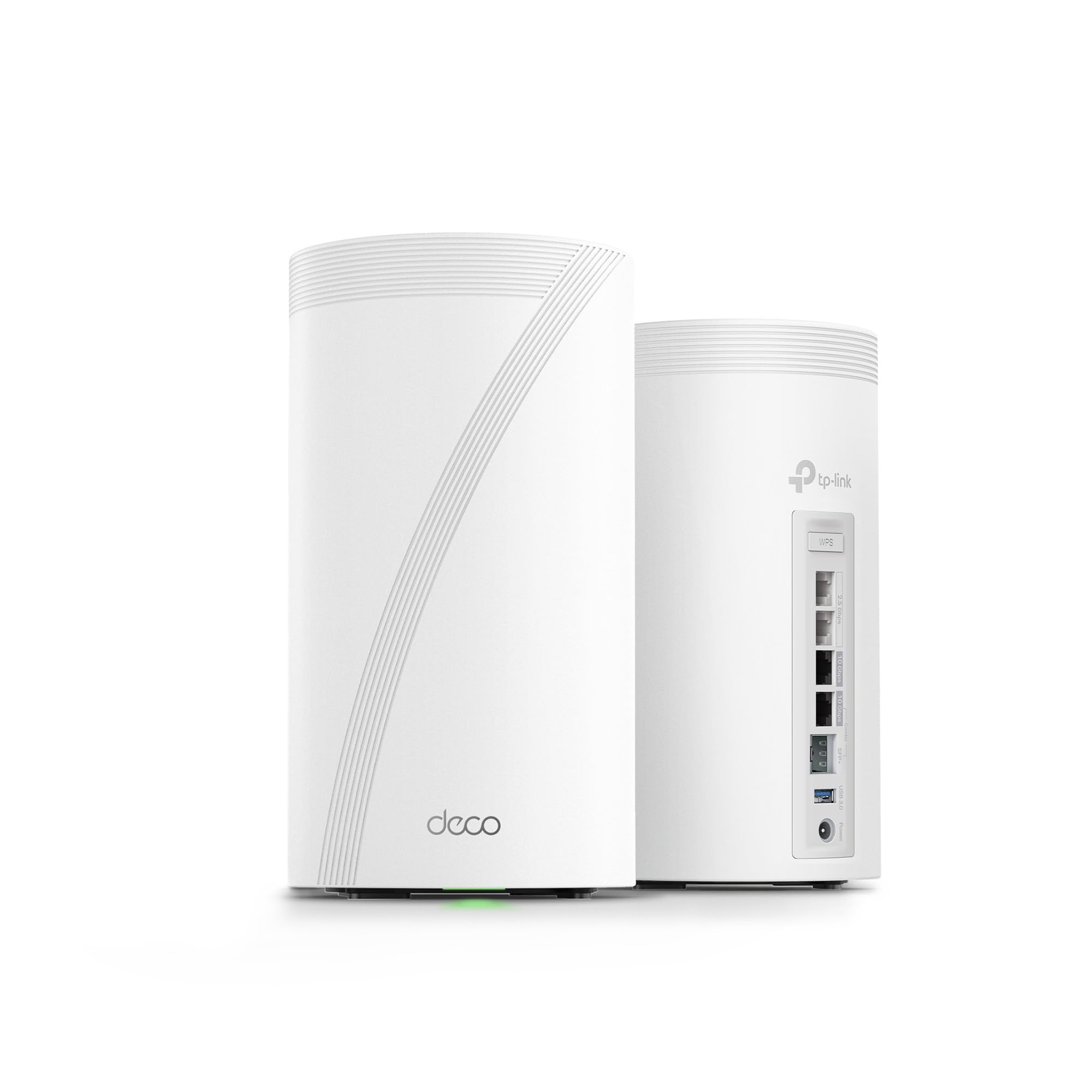
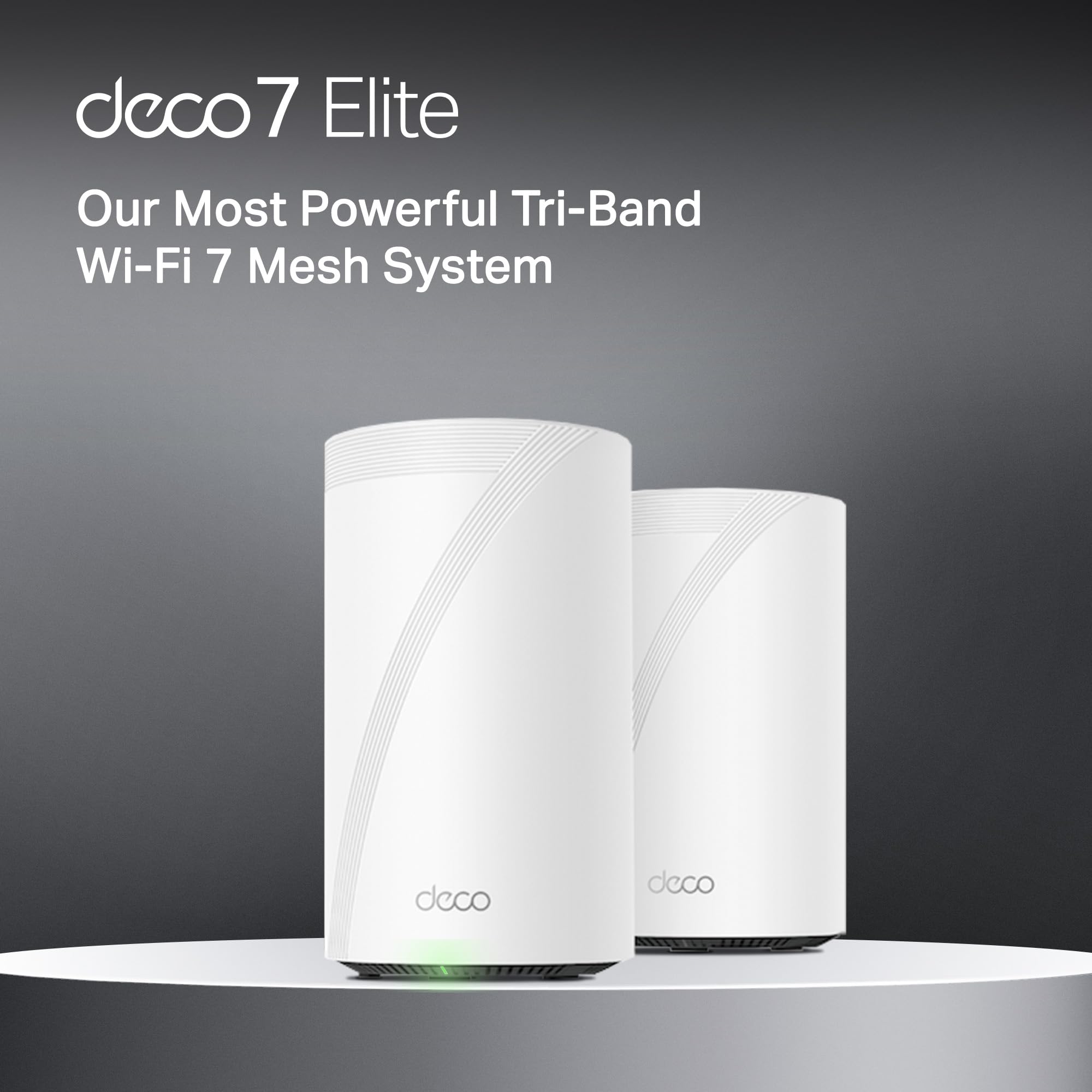
The TP-Link Deco 7 Elite BE85 is a cutting-edge WiFi 7 mesh system delivering up to 22 Gbps tri-band speeds with 8 high-gain antennas and dual 10G WAN/LAN ports. Designed for expansive whole-home coverage, it supports simultaneous wired and wireless backhaul, AI-powered seamless roaming, and advanced security features via HomeShield. Ideal for tech-savvy professionals seeking future-proof, ultra-fast, and secure connectivity for 200+ devices in large, multi-story homes.


| ASIN | B0C4W1L4B3 |
| Antenna Location | Home |
| Antenna Type | Internal |
| Best Sellers Rank | #7,674 in Electronics ( See Top 100 in Electronics ) #35 in Whole Home & Mesh Wi-Fi Systems |
| Brand | TP-Link |
| Built-In Media | 1 RJ45 Ethernet cable, 2 Power adapters, 2x Deco BE85 units, Quick Installation Guide |
| Color | White |
| Compatible Devices | Smartphone, Tablet |
| Connectivity Technology | Ethernet, USB, Wi-Fi |
| Control Method | App |
| Controller Type | App Control |
| Coverage | Extensive Whole Home Coverage |
| Customer Reviews | 4.0 out of 5 stars 2,291 Reviews |
| Data Transfer Rate | 22000 Megabits Per Second |
| Frequency | 6 GHz |
| Frequency Band Class | Tri-Band |
| Global Trade Identification Number | 00840030706929 |
| Has Internet Connectivity | Yes |
| Has Security Updates | Yes |
| Is Modem Compatible | No |
| Item Dimensions L x W x H | 5.04"L x 5.04"W x 9.29"H |
| Item Type Name | Mesh WiFi |
| Item Weight | 6.53 Pounds |
| LAN Port Bandwidth | 10 Gbps |
| Manufacturer | TP-Link |
| Maximum Upstream Data Transfer Rate | 11000 Megabits Per Second |
| Model Name | Deco BE85(2-pack) |
| Model Number | Deco BE85(2-pack) |
| Number of Antennas | 8 |
| Number of Ports | 4 |
| Operating System | RouterOS |
| Other Special Features of the Product | Access Point Mode, QoS |
| Router Network Type | wireless and wired |
| Security Protocol | WPA, WPA2, WPA3 |
| Special Feature | Access Point Mode, QoS |
| UPC | 840030706929 |
| Warranty Description | 2 year manufacturer |
| Wireless Communication Standard | 802.11.be, 802.11ac, 802.11ax, 802.11g, 802.11n |
| Wireless Compability | 802.11.be, 802.11ac, 802.11ax, 802.11g, 802.11n |
H**K
Easy basic out of the box setup and powerful coverage and speed
I have been waiting for three years to reestablish my WiFi in my home following a fire that destroyed my previous WIFI MESH network. Extremely easy to setup once you login to your account. The only issue I experienced and it was an annoying one that could have been resolved with a preemptive statement in their instructions for logging into the TP app. It requires 2-factor authentication and will only use an email address and not a cell-phone SMS text message. They have difficulty in sending the emails to a regular email provider like Comcast. The 2-factor wait time times out long before you receive the code in an email… if you ever do. It was the only issue that I have encountered thus far. I found the first level support less than sufficient to explain why I could not get logged in, though he did insist that I needed to have a google or yahoo email but did not explain why. We spent over an hour and then he transferred me to his manager who said we would have to wait for the second tier support to call me in the morning. Which to their credit they did… but just after hanging u p with support, I tried to login from my iPad and I had face recognition setup and it bypassed the 2-factor email requirement. YAY that I didn’t need to revert back to the rental modem/router. The interface is intuitive though different approach than Comcast branded solution. Haven’t done much accept setup the bands and named the equipment. I have all network bands configured except you cannot separate 5&6 they are banded together as one for MLO. I have a guest, MLO, and IOT network setup for the SmartHome devices. All seem to have reconnected that were connected previously and 2 more have connected that had failed to connect with a single modem/router on the extreme end of the WiFi network. I have a 4k 4 story home so I really needed this. Two are on the on the 3rd floor on opposite ends of the house connected via Ethernet. The third is connected wirelessly on the first floor directly below the second unit. Coverage is terrific and performance a boost over the Comcast rented - modem/wifi router. I will update this as I explore more options and pursue network security options. Bottom line is simple out of the box setup and configuration with great coverage and speed. Only downside is they are L A R G E units so plan your placements ahead of time.
R**N
Blazing fast, also for Wifi 6!
I bought these to replace for my Asus ZenWifi XT8 mesh system, and I'm glad I did. This is a Wifi 6E system, as opposed to my old Wifi 6 Asus system. Most of my devices are Wifi 6, with a couple also supporting Wifi 6E. I use three of these for my house: two in the main house and one in the office in the back yard, all using wireless backhaul. I have a CenturyLink gigabit Internet connection at home, and I connect directly using PPPoe (not through their "modem"). I'm very impressed with the speeds I'm getting with the TP-Link XE200s. My old Asus ZenWifi XT8 system would give me about 300-450 Mbps, depending on device and location, but now I easily get 500-600+ Mbps for Wifi 6 and 800+ Mbps for my Wifi 6E devices. You set up and manage your TP-Link mesh network through the Deco iOS or Android mobile app, which is user-friendly and intuitive. There's also a web UI, but that just shows you the current configuration; you can't really change anything. That's fine with me, as the mobile app provides all I need. The TP-Link system is definitely not as configurable as Asus ZenWifi or Netgear Orbi, which offer highly granular customization settings in both the mobile app and web UI, but that doesn't really matter to me. The Deco mobile app offers all the main configuration options, including various connection types (including PPPoe), viewing and managing connected devices, block lists, network optimization, connection alerts, guest networks, etc. One thing to be aware of is that some enhanced security features (web protection, intrusion prevention, and IoT protection) and parental controls are behind annual subscriptions ($34.99 and $17.99, respectively). It would have been nice to not have to pay for that separately, but that's not a deal breaker for me. I had originally bought a TP-Link X95 system, but this X200 (only marginally more expensive) blows that out of the water, with much better performance and faster speeds. Overall, my network is much faster now, both wifi performance and copying to and from my NAS. This is a great mesh wifi system that's easy to set up, offers great speeds, and doesn't break the bank, particularly when on sale. Highly recommended.
R**N
I implore you, don't buy a TP-Link Mesh System
As a current owner of a 2nd-generation Eero mesh system, I have been very happy with the brand. It has consistently delivered reliable wireless internet across my home with no issues whatsoever. However, the WiFi 5 technology is now 6 years old and I had set my sights on upgrading and future-proofing my wireless mesh network. For months, I waited for the TP-LINK BE85 or BE95 to go on sale. Despite the mixed reviews these mesh units have received online, I thought it would be worth the gamble to see if it improved my home network. On Amazon Prime Day, the price of the BE85 3-pack dropped to $799, which was the perfect opportunity for me to finally grab these. Within 10 hours, I set up and then returned the TP-LINK BE85 mesh system THE GOOD Installation was a breeze and took under 15 minutes for all three units. The app does a great job of guiding you through the setup. As soon as you have the main unit connected, the other two are already programmed to connect. Essentially, they become plug-and-play. Each Deco unit is rock solid in construction. It has 2x10Gbps and 2x2.5Gbps ports. This is great to have should I ever consider upgrading to a 2GB Internet service, which is not likely, but still futureproofing. The Decos also has a USB port to connect and network an external drive, which I found to be one of the most compelling features. After installation and network connection, I put the mesh unit in AP mode as two of the units had backhaul ethernet connections. I have a 1GB Internet feed I was elated to see significant wireless speed increases across my entire home with no dead spots. My speed increased to an average of 200mbps per location I tested. When I was within 6 feet of one of the wired Decos I would get a 600mbps connection (compared to 312mbps with the Eero). Further away from the nodes, I would see wireless speeds of 250mbps (compared to 54mbps with the Eero). I should note here that, according to the Deco app, I believe everything was connected to the 2.4Ghz/5 Ghz network so I don't even know if my devices were taking advantage of WiFi 6 or WiFi 7. Since I used the same SSID and password of my Eero mesh, almost everything immediately connected to the new network. THE BAD My five Nest cameras disconnected. Surprisingly, my Ring cameras remained connected. I am pretty confident I could have manually removed and then added each of the Nest cameras to the new mesh network, but that is a huge hassle given the fact it can't be done through the Nest app. I have to get up on a ladder and rescan the QR code on each camera which is a major, major hassle. I would have done it, however, if not for the next issue... My devices were constantly disconnecting and then reconnecting to the network for 10 hours post-installation. This included my iPhone, my laptops, and my Amazon devices. I did extensive Google research and played around with some recommended changes in the Deco app. This included turning off roaming and manually telling each connected client to disconnect from the mesh network, none of which helped. Mind you, these were all TP-LINK support recommendations. I even updated the firmware, which did nothing. I did come across something that made me decide I needed to return this Deco mesh system... Countless -- and I mean countless complaints on Reddit and other message boards about network instability with many of the TP-LINK Deco mesh systems. Don't believe me? Google, "TP-LINK DECO DISCONNECTS" and you will be horrified with the results that you find. These things are essentially trash. For so many people to have the same mesh network instability that I am currently experiencing, tells me that this is a highly unreliable brand. And, sure, there are many positive reviews on Amazon (as well as bad ones), and generally only people who have issues with their products end up posting a bad review --- but it's still very obvious to me that this is not a reliable product. Many posts I read indicated that customers who returned their TP-LINK looked to move to Eero. CONCLUSION I am back on my old Eero system. Everything is working fine, albeit I'm back to slower wireless speeds, which for the moment, is okay. I would consider upgrading to the Eero Pro 6+ mesh units (at around $300 for a 3-pack on sale), but I am not certain they will give me significant gains as the more powerful Deco units did. Then there's the Eero Pro 7 Max. It will probably come down to $1k for a 3-pack soon, but it's not getting very good reviews. I may just have to suck it up and remain with my 2nd generation Eero mesh system until better hardware gets released.
M**S
Pricey, but performs outstandingly
Installed 5 of these in a large house where WiFi demand was high in parameter rooms and opposite corners. Usage includes gaming PC’s, numerous TV’s streaming, Office laptops, numerous iPads and iPhones, etc. Even installed one in my garage near the driveway so I get coverage there and in the front yard. Coverage has been outstanding. My internet speeds tests have been blazing fast in every part of the house. Signal strength has been very strong. The app gives great visibility into which client devices are connected into which Ecco unit. And, connect preferences can be tailored. I use the app much more than I ever imaged I would to check on things and it is really easy to use and well thought out. I must say the whole system has been fantastic and exceeded my expectations. The units operate dead quiet. When initially setting up, I did have some questions and contacted support who easy to get a hold of and were very helpful. Needless to say, I love this system!
T**H
Future-proof WiFi with blazing 22 Gbps speeds and robust security features
The TP-Link Deco BE85 (BE22000) Tri-Band WiFi 7 Whole Home Mesh System is designed for users demanding ultra-fast, seamless internet across large areas, making it ideal for multi-device households. Featuring next-gen WiFi 7 technology, it offers unprecedented speeds of up to 22 Gbps through its tri-band setup (6 GHz, 5 GHz, and 2.4 GHz), perfect for high-definition streaming, gaming, and smart home devices. ### Key Highlights: - **Exceptional Speed**: With combined wireless speeds of up to 22 Gbps, the Deco BE85 leverages the new WiFi 7 technology. This includes 11520 Mbps on the 6 GHz band, ensuring congestion-free performance, especially useful for heavy internet activities such as 4K/8K streaming or virtual reality gaming. - **Wide Coverage**: The system covers up to 9,600 square feet, making it suitable for large homes or multi-story buildings. With seamless AI-Roaming, devices are automatically connected to the best signal as you move throughout the house, ensuring consistent performance. - **10G Multi-Gigabit Ports**: Equipped with two 10 Gbps WAN/LAN ports (including a flexible RJ45/SFP+ combo), along with two additional 2.5G ports, this system is ready for multi-gig internet connections, eliminating bottlenecks and future-proofing your network. - **Mesh Flexibility**: Supports up to 200 connected devices without compromising speed, thanks to the tri-band configuration and Multi-Link Operation (MLO), which optimizes simultaneous data streams across different bands to reduce latency. - **Advanced Security and Controls**: TP-Link HomeShield provides strong security with WPA3 encryption, cyber threat prevention, parental controls, and detailed usage reports, ensuring your network and devices stay protected from online threats. - **Easy Setup**: The Deco app allows for quick setup and easy network management. It’s also compatible with Amazon Alexa and Google Assistant, giving you voice control over your network. This system is a top choice for tech enthusiasts who need reliable, high-speed internet for a large number of devices and future-proofing their home network.
J**H
Simple setup + easy to use through an app.
Easy to setup. Must use a phone app instead of an app and a web page. It has a web page but very minimal settings through it. It was reliable and functioned with a great signal strength and quality. If you want a latest gen wifi for someone that you setup and walk away from - this would be it. It would also be behind a modem / fw. Note - I sent mine back as it did not meet my needs working with the archer router as well as not having a more settings related web interface sadly. But testing - worked great.
K**N
The Deco APP is lacking, but the product is solid. This is my Tips on Installing the Units
The quick rundown is: The house is an approximately 3,500 SF single-level home with many brick-solid doors and twists and turns. The modem is in the center of the house in my office. Wi-Fi without a mesh system would drop off in the back rooms to a crawl. I previously had an ORBI RBS850 for my Cox 1GIG Down / 35 Up plan (they just changed to 100 up before I switched). The ORBI did fine for the last three years I had it. However, even though I would move the satellites around, I would still get reduced speeds in the furthest rooms. Based on ORBI, the RBS850 with two satellites should have been overkill, but it wasn’t. I recently received FIBER and opted for the 1Gig Up/Down. Since the speed is overprovisioned, I’m able to get 1,300 Up/Down. My ORBI was limited to 1 GIG port, so I was limited to around 945 with overhead down and the full upload speeds. Since I do a lot of CAD and video work, I am also considering moving to the 2 or 5-GIG plan in the future. I researched many of the new Wi-Fi 7 mesh systems. Note that I currently do not have any Wi-Fi 7 devices, but I might in the future. I narrowed it down to the new ORBI 970, the Deco BE 95, the Deco BE85, and the Eero Max 7. I chose the Deco BE85 due to its two 10 Gig ports and two 2.5 Gib ports and the price factor. The ORBI was way overpriced, and the BE95 offered me nothing extra. Though the Max 7 was tempting, I ultimately went with the BE85 since I would have wired backhaul on both satellites. My out-of-the-box experience: 1. The Deco comes packaged in a very nice, easy-to-open container. 2. You are presented with three identical Deco units, three power adapters, and a cord for each that can be removed, making it easier to fish power cords for the Deco. 3. I appreciate that the plug-in on the Deco is a normal size and isn’t one of those that take up three or four plug-ins due to its shape/design. 4. I already had my BGW320-500 modem set to bridge mode and the ORBI as the router. 5. I downloaded the TP-Link APP and started to install the Deco BE85 Mesh system. 6. The app asked me to scan the bottom of one of the Decos (it didn’t matter which, as it would become the main). 7. The app did not list a BE85. Maybe it is listed as a BE2200? Nope. 8. I then continue to install but choose Install MANUALLY. 9. I turn off my printers (you will really want to do that) 10. Unplug my BGW320-500 Fiber Modem. 11. I disconnected from all of the ORBIs. 12. I take a photo of the bottom of the Deco I choose to be the Main so I can add the MAC Address 13. I then connect to Deco’s Wi-Fi through my phone. 14. It then tells me that the Deco I chose doesn’t match the one I’m installing. ( I KNOW THAT.) 15. It asks me if I want to change it to the BE85. Of course I do. I say yes and click Next. 16. It tells me to connect the Fiber Ethernet to my Deco and then to my Switch. 17. I connect to the top 10G port on the Deco and then to the switch on the bottom 10G port of the Deco. 18. Since I have a switch with two 10G ports and 6 2.5 G Ports, I connect all the drops to my other rooms to my switch. 19. Deco warns me that only one 10G port can be used and that the bottom is a combo port. For a second, I thought, why give me two ports if I can only use one? Then, it dawned on me that the warning was poorly written. What they mean is you can use the bottom port as a 10G ethernet port by taking out the plug and using the bottom SFP+ port (if needed), but you can’t use both at the same time. 20. I then placed my first Deco satellite Unit in Room 1, connected the wired ethernet drop to the top 10G port, and connected the lower 10G port to my Switch in Room 2. 21. I then plug in the first Deco Satellite, and it connects almost immediately. 22. I do the same thing for Room 2, connecting it the same way as Room 1. 23. I then change the SSID to match my old SSID and password Exactly. 24. Make note that both are case-sensitive. 25. It takes it, and Now I don’t have to change all my Wi-Fi log-ins on 50+ devices. 26. Before I started, I had an Excel spreadsheet with all my devices' MAC addresses. You should do the same if you can. 27. I looked at the Deco app on my iPhone and noticed that most of the devices did not have very good descriptions. I simply went into the app, looked at the connected MAC address, referenced it with my spreadsheet, and copied the name from my spreadsheet into the Deco app. (Note that I had the spreadsheet on Dropbox, so I was able to copy from my iPhone to the Deco app without typing them all out. 28. In about 10 minutes, I had all my devices with good descriptions. 29. I then noticed that there was a section for devices that were not currently online, like TVs, PS5s, etc. I changed the names of these devices, too. 30. I checked everything out and noticed the 6Gz channel had my SSID followed by _6Ghz, I do have some phones that are 6Ghz so I went in and changed the SSID to match my other SSID by removing the _6Ghz at the end of the name. 31. My phones were not connecting to the 6Ghz. 32. I then found a place under Advanced called Fast Roaming. It was off by default. I turned it on, and my phone connected to the 6Ghz channel. NOTE: If you have some older 2.4Ghz devices, this could cause them not to connect, and you will have to turn them off or get updated devices. 33. I then noticed the Deco App had a DARK mode. I changed it, and my eyes thanked me. 34. I noticed in the app that there is a delay, so give it a moment. 35. I downloaded the App on both my personal and work phone, and they synced perfectly, but there was also a delay there. 36. I noticed you can access your network even when your phone is not connected to the network. This can come in handy. 37. I then noticed four devices I had never seen before. After much investigation, I noticed it was showing me the switches connected to it. It was strange because they were TP-Link switches but were showing as Android 1-2,3,4. I corrected those names as well. 38. I then ran the network optimization tool, which lets you know if there is interference with the main unit or a satellite. Moving them slightly or moving something away from them can help. This was actually a handy feature. 39. I tested my speeds, and the connected PCs (all but one connected by ethernet) are 1250-1300 Up/Down. 40. iPhone 15 Max is quite fast in every room. I get speeds of at least 750 Up/Down depending on the room I’m in, and if I’m close to the Main or a satellite, it is even faster. 41. The Web interface for the Deco is…Just use the phone App. 42. The Decos are warmer than my ORBIs, so keep them in a ventilated area. 43. I wish they would come in different colors. 44. If you can, WIRED BACKHAUL is the way to go. 45. My TVs are all Sony Bravias. I got a USB to RJ45 adapter and plugged it into the USB3 port on the TV, then connected that into either the Deco or the switch (same speed on both). As you can see in the photo, 950+ speeds up/down. (I don't know if it will work on other model TV's) 46. If your TV supports it, this is the way to go. It is faster than the 100MB limited switch on the TV and faster than Wi-Fi, even with the satellite sitting right next to the TV. 47. I don’t know how this will work yet, but I set the Deco to check for updates nightly. Hopefully, this will prevent a problem with a rogue firmware update. 48. Set notifications when new devices join the network. 49. I didn’t opt in for their Parent Control. My kids are 34-28 and alone, so there is no need. 50. I didn’t get their protection as I have my own, and they should have included it for free. 51. Crazy thing happened. On an ATT modem set to passthrough, you need to enter the router's Mac address (I had the ORBI entered first, then changed to the Deco when I replaced it). You go to your AT&T status page on the web 192.168.1.254, enter your credentials, and go to Firewall > IP Passthrough. Change Allocation Mode to Passthrough, Passthrough Fixed MAC address you can select from list or enter the entry Manual. The manual is fine. Now, here is the crazy part. I still had my disconnected ORBI as the manual entry, and everything worked fine. I couldn’t see any issues. I changed it to match my Main Deco unit, and all is still fine. I really don’t know how it worked before. 52. Take a photo of the main unit to have it when you change the MAC address. 53. One last thing: when I had my ORBI as the router, all my IP addresses were 172. xxx, and with the Deco as the Router, all my IP addresses changed to 192. xxx. I don’t know why, but everything is working. 54. NOW, back to the printers. If they are off when you get everything connected and then turn them on, they will connect easily. However, depending on the printer model, they may get lost, and everything will be connected except your printers. So, to be on the safe side, turn them off, and once everything is connected, turn them on. 55. Well, I hope this helps someone with their Deco.
R**O
Big, bold, but works like a charm.
Came from a Eero 7 Pro (unstable, prob worst than Japan’s tectonic plate), this is so much better, easy to setup, you can do everything in 5 minutes, and has VPN!!!. You need tailor to your environment and make sure you test during all the changes, I got my optimal configuration after 30 minutes; using the satellite as a wireless mesh hub (not wired), and I’m getting 2gbps on everything that is attached to the satellite! Signal is pretty good for my usage, didn’t had a problem yet. It’s quite big, at least is well designed so it looks good anyway. Highly recommend this product!
Trustpilot
1 week ago
1 month ago